
This article is part of the Tool Mastery Series, a compilation of Knowledge Base contributions to introduce diverse working examples for Designer Tools. Here we’ll delve into uses of the Spatial Info Tool on our way to mastering the Alteryx Designer:
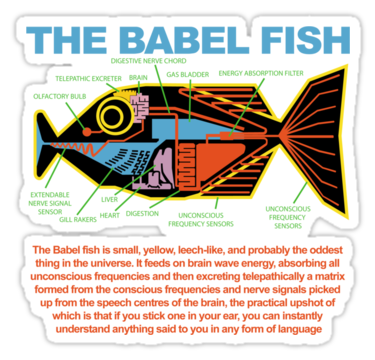
The Spatial Info Tool is essentially the Babel fish for all spatial tools.
Don’t know the area of your polygon?
Need the length of your line?
Do you want your spatial object’s X and Y coordinates?
Don’t Panic! The Spatial Info tool can translate all that information and more!
The Spatial Info tool will find and append 8 types of data:
- Area (km/mi)
- Bounding Rectangle
- Centroid
- End Points
- Length (km/mi)
- Number of Parts/Points
- Peano Key
- Spatial Object Type
Area (km/mi)
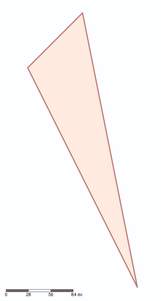
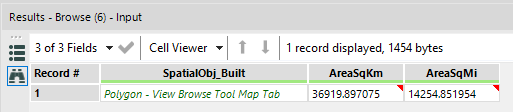
The area of any/all convex polygons is calculated and appended in kilometers or miles.
Bounding Rectangle
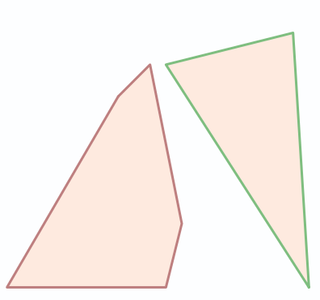
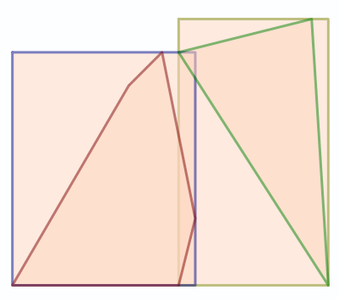
The bounding rectangle as polygon generates and appends a bounding rectangle spatial object and can be used to find if one polygon’s x,y points extend beyond another polygon’s x,y points.
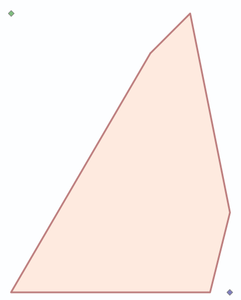
The bounding rectangle as points finds and appends the Top Left and Bottom Right corners of the bounding rectangle as spatial objects. The bounding rectangle as X and Y Fields appends the Top Left and Bottom Right corners of the bounding rectangle as numerical X and Y coordinates.

Centroid
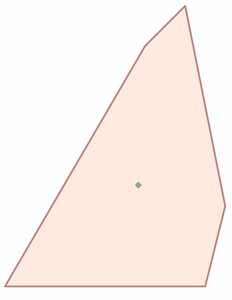
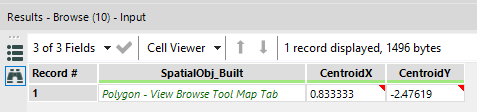
The center of the polygon/polyline is generated and appended as a spatial object and/or X and Y coordinates.
End Points
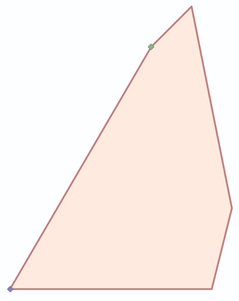
The end points of of a polygon/polyline are generated and appended as a spatial object and/or X and Y coordinates. A polygon is drawn clockwise from the start and will be adjacent to the end point.

Length (km/mi)
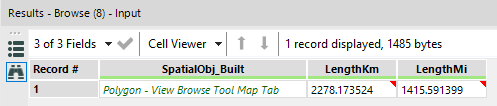
The area of any/all polygons/polylines is calculated and appended in kilometers or miles.
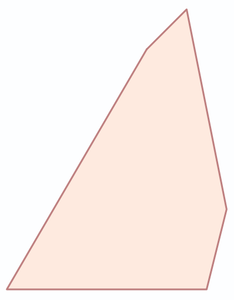
For a polygon, the length represents the circumference.
Number of Parts/Points
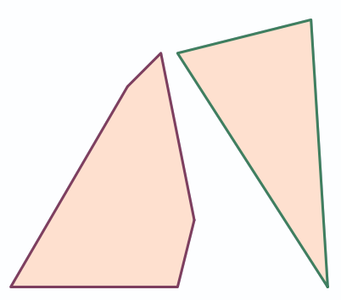
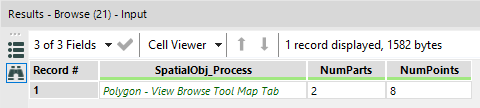
The number of parts counts and appends the number of independent polygons/polylines within a spatial object. The number of points sums and appends the total number of verticies within a spatial object
Peano Key
The Peano key is used to arrange start and end points of a shape within a space filling curve. The most common space filling curve these days is Hilbert’s curve, however the Peano curve was the original, OG curve. The concepts behind how to apply a space filling curve can be found here (ex. audio & image processing). Please comment if you have used the Peano key as it is a very unique application for a spatial object!

Spatial Object Type
The type of polygon (Point, Line, Polyline, Polygon) will be appended.
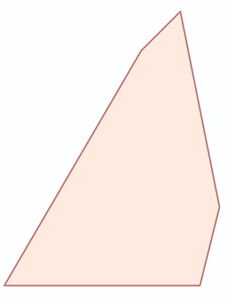
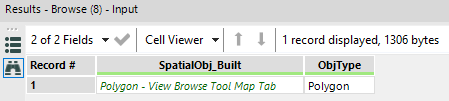
The Spatial Info tool really is the universal translator for all spatial objects within Alteryx.
P.S. If you really do use the Peano key please comment! Space filling curves are a unicorn use case for spatial tools.

By now, you should have expert-level proficiency with the Spatial Info Tool! If you can think of a use case we left out, feel free to use the comments section below! Consider yourself a Tool Master already? Let us know atcommunity@alteryx.comif you’d like your creative tool uses to be featured in the Tool Mastery Series.
Stay tuned with our latest posts everyTool Tuesdayby followingAlteryxon Twitter! If you want to master all the Designer tools, considersubscribingfor email notifications.


