
Hi Maveryx,
A solution to last week’s challenge can be found here.
This challenge comes to us from @Sebastian_Chaieb2. Thank you for your contribution, Sebastian!

This challenge is an advanced version of our previous Weekly Challenge #365. In this iteration, we will use the same datasets to generate a report; however, this time we will incorporate LEGO model images into our report!
Distinct from its predecessor, in the app you will develop for this challenge, you will incorporate a dropdown menu, enabling users to select a LEGO collection. In addition, a list box will facilitate the choice of one or multiple release years from a list.
The following is a breakdown of the tasks that lie ahead to conquer this challenge:
1. Dataset Integration and Table Creation:
Combine the datasets to construct a comprehensive table with the following columns:
- Model Number (This is the Set ID.)
- Model Name
- Year Released
- Number of Parts
- Collection Name
2. App Development:
Create a dropdown menu where the user can select a unique collection name:
- Use the Collection Name column from the table created in the prior step.
- Use only collections with 50 or more model name entries.
- Filter out collection names containing periods (.), commas (,), and forward slashes (/).
Design a list box feature for the user to select a single year or multiple years of release:
- Use the Year Released column from the table created in the prior step.
3. Filtering and Model Selection:
- Use the input data the app user provides to filter your table and select the Model Number(s) corresponding to the user’s selected collection name and year(s) released.
4. Automated Image Retrieval:
- Create a batch macro to obtain images for each model from the Brickset website.
- Modify the web address using this structure:

- Extract page content and implement a filter to identify rows that contain https://images.brickset.com/sets/images/ alongside the [Model Number] field.
- Extract the path to image (JPG) and Model Number (as sometimes on the page will have additional pictures attached).
- Use a filter to take only the image link when [Model Number] = [ExtractedModelNumber].
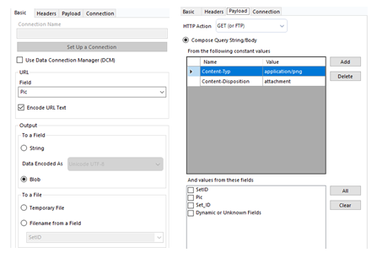
- Use a second Download tool and download the image as a blob. (If a JPG image gives an error that it is in the wrong blob format, then use payload parameters Content-Typ: application/png and Content-Disposition: attachment.)
5. Final Output and PDF Display:
- The final output should be displayed at the end of the app as a PDF file.
Sources:
https://www.kaggle.com/datasets/rtatman/lego-database?resource=download
https://brickset.com/search/


