
This article is part of the Tool Mastery Series, a compilation of Knowledge Base contributions to introduce diverse working examples for Designer Tools. Here we’ll delve into uses of the Summarize Tool on our way to mastering the Alteryx Designer:
Did you know the average football game lasts 3 hours and 12 minutes and only amounts to roughly 11 minutes of play? Now, I love trying to eat Doritos through my TV screen as much as the next guy, but for me the highlights are definitely a better watch. The Summarize Tool would probably agree - the most effective communication of your data is the most concise summary of it. Whether it’s concatenating strings for storage, merging reports to have better readability, getting your spatial objects to interact, or even calculating averages and other formulas on groupings of data, the Summarize Tool can reframe your data to be more informative. This article provides a few examples on how.
- The Summarize Tool has utility for nearly every data type – numerics, strings, spatial objects, behavior profiles, and even reporting elements. Just to name a few of the useful actions (from the full list of summary processes available here) numerics can be summed, averaged, converted into percentiles, or used to find standard deviation. They can also be used in a number of financial calculations. Strings are easily concatenated with the delimiter of your choice, or
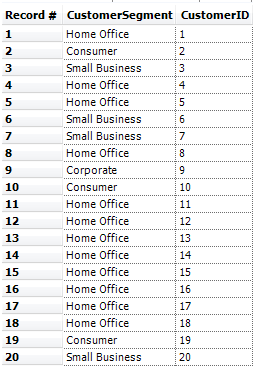
identified as the longest or shortest strings in your groupings. If you have a knack for spatial, you can combine your spatial objects or use them to create intersections, bounding rectangles, convex hulls, and centroids as well. You can even use the tool to count the records you have in each respective group, or identify their minimum (min) or maximum (max) values. While not required, these processes, or actions, can be aggregated across groupings specified in your data by using the “GroupBy” action on one or more fields. This applies the action to sets of records in your dataset that share a unique value in your chosen group by field. For your reference, we’ve attached a v19.4 workflow (Summarize Tool.yxmd) demonstrating uses for each of the applicable data types the Summarize Tool can transform. - If you like the granularity of information your summarized data provides, but want it to supplement your original data set, you can join the two together using the GroupBy field as your join field (be sure to deselect redundant fields in the join!). The attached v19.4 Summarize Count Field Append.yxzp provides an example of this(see the addition of the “CustomerSegment Count” field below):


- The Summarize Tool can also be used to reshape your data – much like another Transform Tool, Cross-Tab, where rows that are first concatenated can be easily converted to columns (with the Text to Columns Tool). Summarize Reshape.yxzp, attached, shows this reshape in v19.4:

Lastly, if you love using the Summarize Tool but find yourself spending time renaming fields after it adds prefixes for each action (you have high standards, we know, it’s why you use Alteryx), try emulating the approach in the attached v19.4 workflow, Trim Summarize or Join Prefixes.yxzp, to remove them.
By now, you should have expert-level proficiency with the Summarize Tool! If you can think of a use case we left out, feel free to use the comments section below! Consider yourself a Tool Master already? Let us know at community@alteryx.com if you’d like your creative tool uses to be featured in the Tool Mastery Series.
Stay tuned with our latest posts every Tool Tuesday by following Alteryx on Twitter! If you want to master all the Designer tools, consider subscribing for email notifications.
Additional Information
Click on the corresponding language link below to access this article in another language -
Portuguese
Spanish
French
German
Japanese


