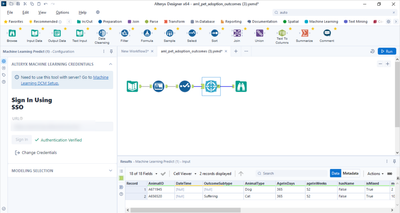
There are four main ways to interact with Alteryx Machine Learning with the rest of your Alteryx products, this guide will show each one as well touch on what is required to
Data upload via UI
As soon as you log into the Alteryx Machine Learning platform for the first time and create a new project one of the first actions you will perform is the data preparation process in Alteryx Machine Learning. There are two main options
- Browse:
- This is only relevant if you have used Alteryx Cloud before and have data existing in your Cloud.
- Import:
- Refers to the manual data import that can be done by browsing files in local storage and to directly upload to the Alteryx Machine Learning platform
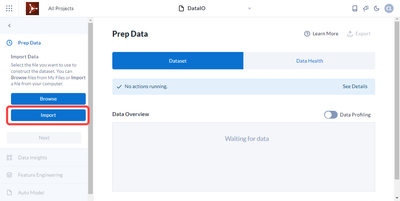
With the import method of data upload only CSV files are supported, refer to the FAQ portion of the documentation for more details.
Data upload via Designer
Although manual data upload offers great flexibility for data sets that are already prepared and ready for use, the recommended way of interacting with Alteryx Machine Learning is through Alteryx Designer because it offers the highest flexibility when it comes to connecting to various data sources and can enable you to easily make changes to your data if needed. Note that for uploading data through Designer you will need to install the ML integration tools, a guide for that process can be found here.
After the Machine Learning Send tool is installed and connected to Alteryx Machine Learning sending data is simple, you will find two main ways to interact with the cloud platform
- Create new project
This option is very self-descriptive, any data that you use as an input for the Machine Learning Send tool will be used as the main data set used in a new project with name and description set in the tool
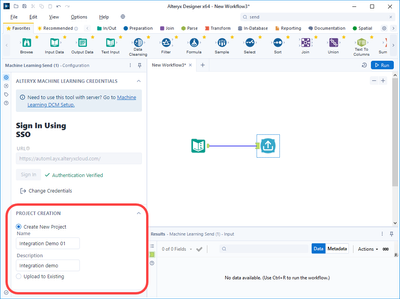
After running the workflow above you may log into your AlteryxML platform and you will find the project you just created

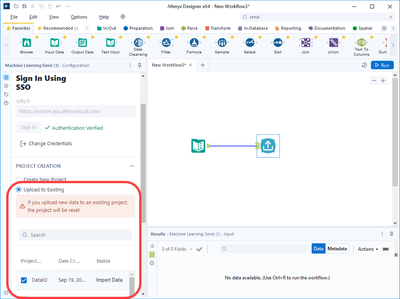
- Upload to Existing
If this option is chosen the incoming data will become the data set used in the project. Note that Uploading new data to an existing project resets it and overwrites the data that already exists for that project.
Data scoring via UI
Once you have trained a model and evaluated it, the next logical step is to put it to use. One of the options you have is to score directly on the platform, perhaps to test your model or to validate assumptions. In the export and score section of Alteryx Machine Learning you will see at the very bottom of the page an option to Upload New Data for Scoring and you will be prompted to either Browse or Import. The same logic applies to these browse and import option as for data upload in the first section of this post.
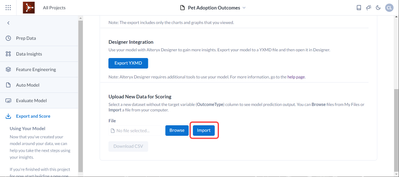
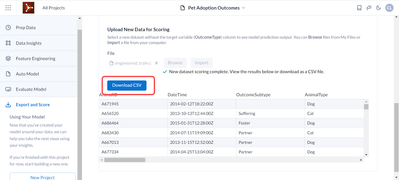
If the data that you upload is in the same shape as your dataset you will be able to score and see results right on the platform and download a copy of the results as a CSV
Data Scoring via Designer
The recommended option to score data is via the integration tools to Designer. In order to use this option you will need to install the ML integration tools, a guide for that process can be found here.
After you’ve trained and evaluated your model you will be an option to integrate with Designer in the Export and Score section of AlteryxML
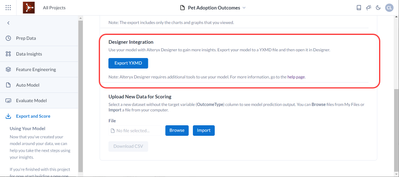
Once you select this option it will automatically download a YMXD file to your local system that can be integrated into existing workflows in Designer or Server