
This article is part of the Tool Mastery Series, a compilation of Knowledge Base contributions to introduce diverse working examples for Designer Tools. Here we’ll delve into uses of the Directory Tool on our way to mastering the Alteryx Designer:
The Directory Tool gives you a data-stream input that contains information about the files and folders (file name; file date; last modified, etc.) for the location of your choice, which you can then use for more complex interactions with the file system. Basically, the Directory Tool could also finally help me track down my keys - not just where I put the keys in the house, but also how long they've been there, and when they were last moved.

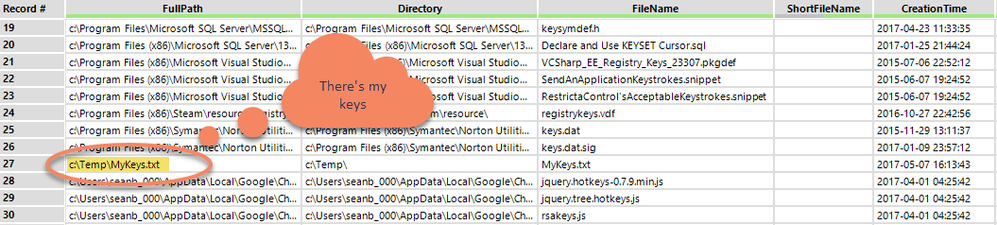
There are two common uses for this functionality:
- Identifying filenames to bring in via an Input Data Tool
- Bringing back file-system information for analysis (where the file system is the object of analysis)
- Use Case 1: Find the file paths to multiple files (attached in the v10.6 Directory.yxzp):
If you wanted to import all CSV files in a folder, this can be done with a wildcard on an Input Data Tool. However, if you're only looking for a subset of the files (you want dog.csv; cat.csv; bird.csv; but you don't want fish.csv), or you only want the most recently modified (which may be deep in sub-folders), then you'll need to enlist the help of the Directory Tool!
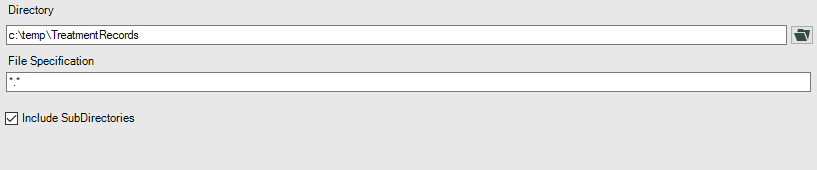
In the example below, we have treatment records from a vet clinic in sub-folders by animal type. We want to bring in the treatment record for most recently treated animal (by looking at file modified date) - however, we don't want the birds or fish. Each treatment record is named after the animal, so there's not much consistency in file naming.

The initial directory scan brings back all the files stored in the various folders, along with important information about the size and modified date:

You can see that it brings back files in each of the treatment folders, and cousin Freddy seems to be the most recently updated (but he’s a frog…)
Because we have the file information, we can then sort and filter, and then we’re left with the final file name, which is then imported using the Dynamic Input Tool:

… to bring back the treatment details for Felix the Cat:

So the Directory Tool gives us a way to look inside all our folders, and filter and sort file information just like any other data, so that we can get to exactly the file we want.
- Use case 2 – File system information is the target of your analysis (attached in the v10.6 Directory.yxzp):
Here we look at cases where you're not looking for the Directory Tool to tell you about the files so that you can import data, but more where you want to do analysis on the file system data itself.
For example, you get that dreaded e-mail from your system administrator saying "your network folder is at 95% capacity - please clean some files up to create extra space." If you are anything like me, you probably have working files in there going back for years and it's tough to quickly spot one or two easy, big, files that you may be OK to archive or delete.
This is relatively easy to do using Alteryx:

Use a directory tool to bring back all files in the relevant folder (with subfolders)
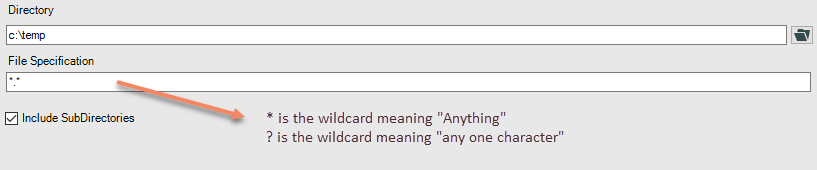
Then filter for files not modified or accessed in the last month/year, sort by size, and the result should be the biggest files that are not being used frequently:

By now, you should have expert-level proficiency with the Directory Tool! If you can think of a use case we left out, feel free to use the comments section below! Consider yourself a Tool Master already? Let us know at community@alteryx.com if you’d like your creative tool uses to be featured in the Tool Mastery Series.
Stay tuned with our latest posts every Tool Tuesday by following @alteryx on Twitter! If you want to master all the Designer tools, consider subscribing for email notifications.


