 This article is part of the Tool Mastery Series, a compilation of Knowledge Base contributions to introduce diverse working examples for Designer Tools. Here we’ll delve into uses of the Email Tool on our way to mastering the Alteryx Designer:
Here at Alteryx we believe in working smart, not hard. Building out reports to highlight business-critical metrics is a pretty smart way to track goals. Customizing those reports to everyone in the department, then distributing them as attachments to individual emails? That sounds like a lot of hard work. Scheduling those reports from a refreshing data source each month so you don’t have to remake or rerun the reports yourself - that’s genius. Logging into your work computer to open up Alteryx, then having to check the scheduled results before having any peace of mind those reports were delivered without a hitch? Hard.
The good news is that, thanks to the Email Tool, we can do the hard parts of our process above in the smartest possible way: email automation. Which, as long as you subscribe to the litmus test of automated email, can dramatically decrease the amount of work it requires to distribute your emails in the use cases below.

The automated email litmus test: upon receipt, will my audience be Ron Burgundy?
- Sending emails after workflow completion/notifying workflow owners when a scheduled run completes (bonus: notification for errors on run)
To send an email when a workflow completes, simply incorporate an Email Tool somewhere in your workflow:
 ;
;
In the attached v10.6 workflow, Email Tool.yxmd, you can see this being done in the “Notification email to reporting process owner” Tool Container. Each time this workflow runs (including when scheduled), a static email notification will be sent to the workflow owner.
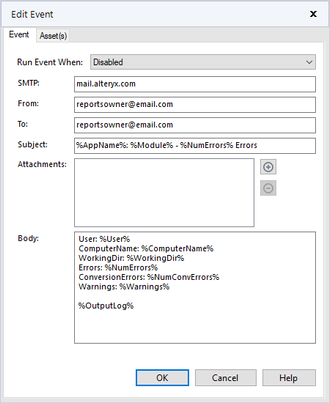
If you’d like to know the status of the workflow and if there were any errors/warnings, try configuring a workflow eventthe same way you would the Email Tool:

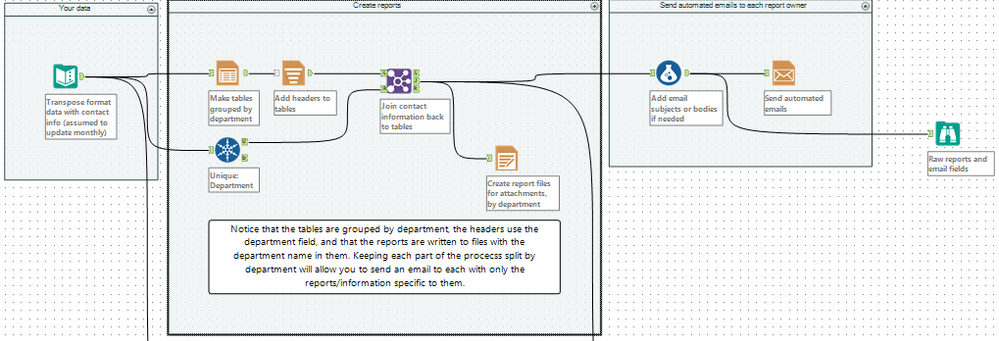
- Automatically distributing customized reports to their individual audiences (see attached Email Tool.yxmd)
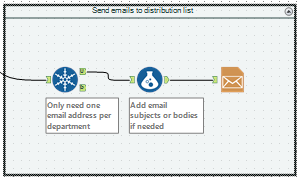
- Emailing customers or members of a distribution list (see attached Email Tool.yxmd)
Please note that any usableemail addresses have been redacted from the attached, causing errors upon run.
If you’re having trouble with the Email Tool or receiving obvious SMTP related errors, check out our article on how to troubleshoot the Email Tool and SMTP! If your attachments generated in the same workflow are giving you difficulty, try using the Prepare Attachment Macro to write them to temp space first. Using web-based email providers like Gmail or Hotmail to send an email in Alteryx is also possible, but with another approach detailed here.
Additionally, as of v2019.3, the Email Tool configuration will now allow users to specify:
- Credentials (username/password)
- Port Number
- Encryption Method
Where the following default settings will be provided, depending on the encryption setting:
Port 25, when the Encryption drop-down list has None selected.
Port 465, when the Encryption drop-down list has SSL/TLS selected.
Port 587, when the Encryption drop-down list has STARTTLS selected
By now, you should have expert-level proficiency with the Email Tool! If you can think of a use case we left out, feel free to use the comments section below! Consider yourself a Tool Master already? Let us know at community@alteryx.com if you’d like your creative tool uses to be featured in the Tool Mastery Series.
Stay tuned with our latest posts every Tool Tuesday by following @alteryx on Twitter! If you want to master all the Designer tools, consider subscribing for email notifications.


