Introduction
When building an Alteryx Analytic Application, dropdown lists are commonly used to let users select parameters such as fields, sheets, files, or categories. While creating a dropdown is straightforward, keeping it up to date when new values are added can be tricky.
In this article, I will explain the different ways to populate a dropdown list in an Alteryx Interface and focus on the best approach to ensure the list stays dynamic and up to date.
1) Static dropdown list (manual values)
The first scenario is creating a static dropdown list, where the list of values is hard-coded in the workflow and does not depend on any external or dynamic data source.
When to use it?
- The list of values is small
- The values are not expected to change
- Simplicity is more important than flexibility
How does it work?
You manually define the dropdown items in the List Box interface tool's configuration.
Limitations of this approach:
If, unfortunately, the list needs to be updated later:
- You must open the workflow
- Manually add or edit the values
- Re-publish the app (if running on Server)
This approach is not ideal when values evolve over time.
2) Dynamic dropdown list
The second scenario is using a dynamic dropdown list, which is the recommended solution when values come from data and may change. This approach ensures the dropdown list is automatically refreshed whenever new values are added to the source data.
We will walk through an example whose core idea is:
- Create a small data preparation workflow
- Output one column containing the allowed values
- Use this column to populate the dropdown list in an analytic app
Note that the data prep logic can be:
- A separate workflow, or
- The first part of the same analytic app
In this example, we will use two chained analytic applications.
Application 1: Extract sheet names from an Excel file and save them into a YXDB file.
Application 2: populate the dropdown list from the YXDB file
Application 1: extract sheet names from an Excel file whose name is travel and save them into a YXDB file.
The first application is responsible for building the list of values that will later be used in the dropdown list.
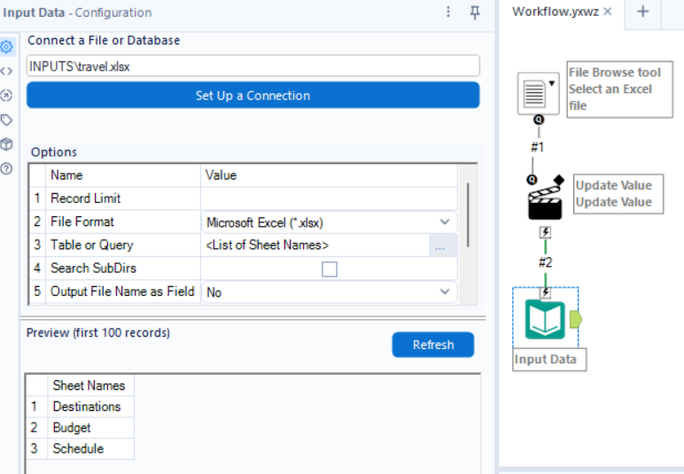
Step 1: The process for reading the Excel file is illustrated below.
- A File Browse interface tool is used to allow the user to select an Excel file at runtime.
- The File Browse tool is connected to an Action tool, which is connected to an Input Data tool.
- In the Input Data tool configuration, the option “List of Sheet Names” is selected.
This configuration returns the list of sheet names from the selected Excel file as a single column.
The travel.xlsx file used in the example contains three sheets: Destinations, Budget, and Schedule.
Step 2: Generate a value column
- A Record ID tool is added to the workflow.
- This tool creates a new column that assigns a unique identifier to each row.
- The generated column is renamed to Value.
This Value field will later be used internally by the List Box tool to track selections.
Step 3: Prepare the output structure
A Select tool is used to:
- Rename the Sheet Names column to Name
- Change the data type of the Value column to String
This step is essential because the List Box tool expects the external source to contain Name and Value fields, both of which are compatible with string-based selections.
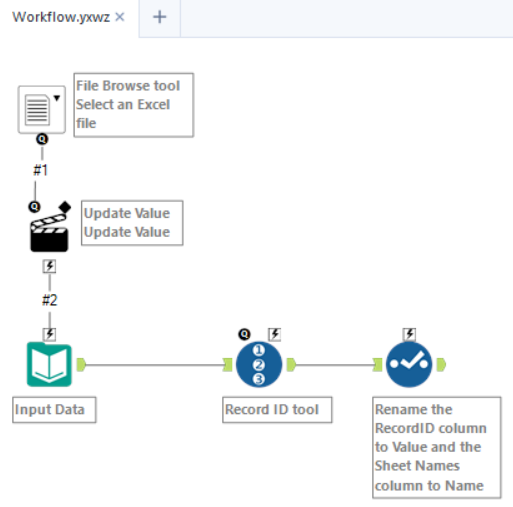
Finally, the result is written to a YXDB file (for example: Out1.yxdb).
This YXDB file will serve as the dynamic reference source for the dropdown list in the second application.
This means:
- Any user running the app can browse to any Excel file
- The dropdown list containing the sheet names automatically updates when a different Excel file is selected
Application 2: Populate the dropdown list from the YXDB file
The second application reads the Out1.yxdb file created in application 1 and uses it to populate a dropdown list.
Step 4: Read the Out1.yxdb file
- An Input data tool is added to read the Out1.yxdb file.
- This file contains two required fields:
- Name: the label displayed to the user
- Value: the internal value used by the app
Step 5: Configure the List Box tool
- A List Box interface tool is added to the workflow.
- In the List Box configuration:
- Select Generate Custom List
- Set:
- Start Text → "
- Separator → ","
- End Text → "
This formatting ensures the selected values are returned as a properly formatted, comma-separated string.
Step 6: Define the external source for the dropdown list
This is the most critical configuration step.
- In the List Values tab:
- Select External Source – Must contain Name & Value fields (can be a relative path)
- In the Properties sub-tab:
- Reference the Out1.yxdb file (preferably using a relative path)
By doing this, the dropdown list dynamically reads its values from the YXDB file generated in the first application.
Step 7: Configure the Filter tool
- A Filter tool is added to the workflow.
- The Filter tool is configured to keep only the rows where the Value field matches the user’s selected sheet names.
- The filter expression is defined using a placeholder condition, such as:
Value IN (...). In our example, as shown in the screenshot above, a filter is applied to keep the first two sheets.
At this stage, the expression is static and will be updated dynamically at runtime by the Action tool.
Step 8: Configure the Action tool
- An Action tool is connected to the List Box interface tool.
- The Action tool is also connected to the Filter tool.
- The Action type is set to Update Value (Default).
At runtime:
- The Action tool replaces the placeholder expression in the Filter tool.
- The replacement value comes from the user’s selection in the List Box.
This allows the workflow to filter and keep only the sheet names selected by the user, ensuring that downstream processing is applied exclusively to the relevant sheets.
Why is the Value field used for filtering (instead of Name)?
When configuring a dynamic dropdown list in an Alteryx analytic app, the external source is expected to provide two fields: Name and Value. While both are required, they serve different purposes, and understanding this distinction explains why filtering is typically done on Value.
Name: Display Purpose Only
- The Name field represents the label shown to the user in the dropdown list.
- It is meant for readability and usability.
- It can contain:
- Spaces
- Special characters
- Long or user-friendly descriptions
Because of this, Name is not ideal for technical operations such as filtering or parameter substitution.
Value: Technical and operational field
- The Value field represents the actual value passed into the workflow when the user makes a selection.
- It is the field used by the Action tool to replace expressions at runtime.
- It is expected to be stable, unique, and easy to manipulate programmatically
Filtering on Value ensures:
- Consistent behavior, even if display labels change
- Cleaner expressions, especially when multiple values are selected
- Fewer issues with quoting, spacing, or special characters
Key Takeaway
If your dropdown values depend on data that can change:
- Avoid static lists
- Use a dynamic, data-driven approach
- Consider chained apps when the dropdown depends on user input (such as file selection)
This methodology significantly reduces maintenance and prevents issues where new values fail to appear in the interface.