Working in Designer provides great visibility on the data process. Any user can open a workflow and get a quick understanding of what other analysts have done.
However, there may be times when the audit department or a third-party audit company wants to audit the workflows and analyze all the tools and configurations used in the workflows. We can accomplish this in Alteryx by using the attached macro, which will output a list of all tools and respective configurations in a neatly formatted table for record-keeping purposes.
The trick is to read in an Alteryx workflow (.yxmd) as a text file.
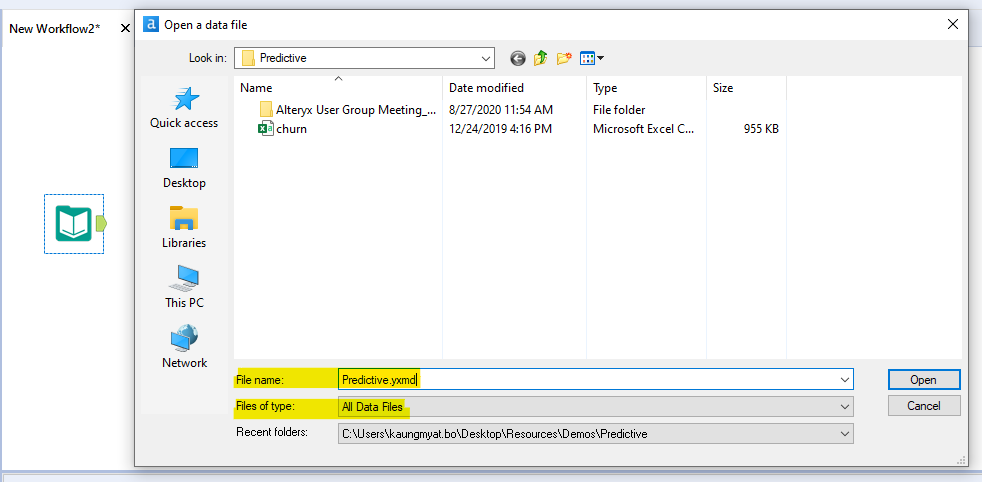
1. Use the input tool and navigate to your folder with the workflow you wish to audit.
2. Make sure to select “All Data Files” as file type and type in the name of our workflow. (Note: You will not be able to view the workflow in the folder browse window.)
3. Read in as comma separated values with the delimiter “/n”
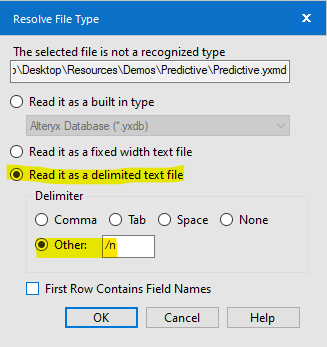
4. Your workflow will be read in as xml codes.
The macro attached to this article does all the above for you and parses the xml codes to give the following output.
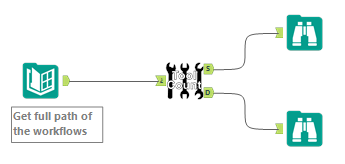
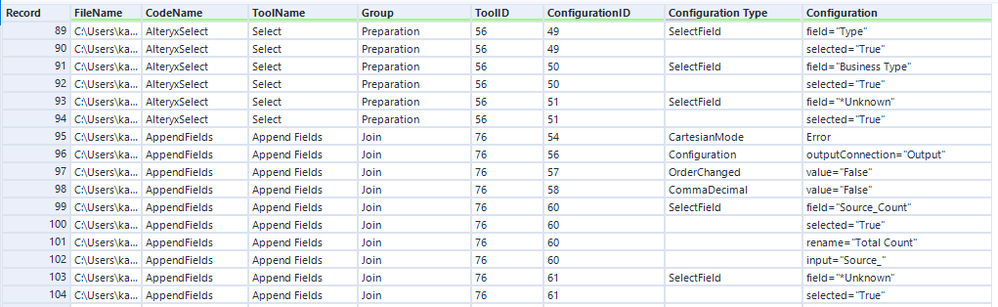
Note: The attached macro does not extract configuration information of macros used in a workflow. This macro has been reconfigured from “Sample Workflows → Use scripting and automation tools → Build a Macro → Identify tools and macros used in a workflow” to include the settings of the tools in the output.


