If you aren’t a programmer, or don’t have Python, JavaScript, or Bash installed, Postman can be a great place to start to call an API. Before we get started, let’s define a few terms:
OAuth 2.0 token - a secret string that proves your authorization to access resources.
API Project ID - a unique identifier for your API Project that can be found on Developer Console.
API Specifications or “API Specs” - API documentation that provides you with the information you need to call an API.
Postman - an API Platform that simplifies the building and using of APIs.
Requirements and Prerequisites
Before you get started, make sure you have Postman downloaded on your machine, or access to the browser version here.
You will also need to Generate an OAuth 2.0 API token. In the top right navigation bar of Alteryx Analytics Cloud, select your profile and then User Preferences.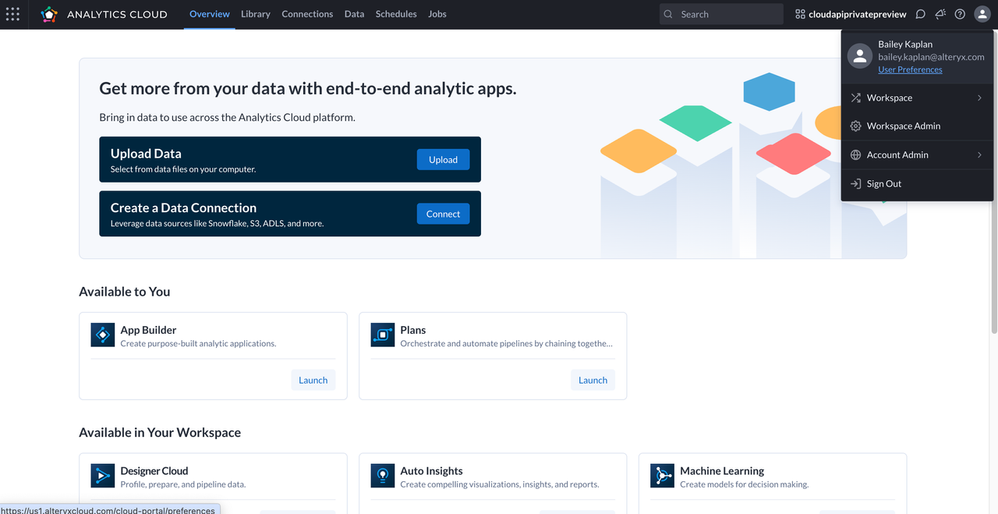
On the left panel, select OAuth 2.0 API Tokens. From here, follow this guide to generate an access and refresh token in Postman.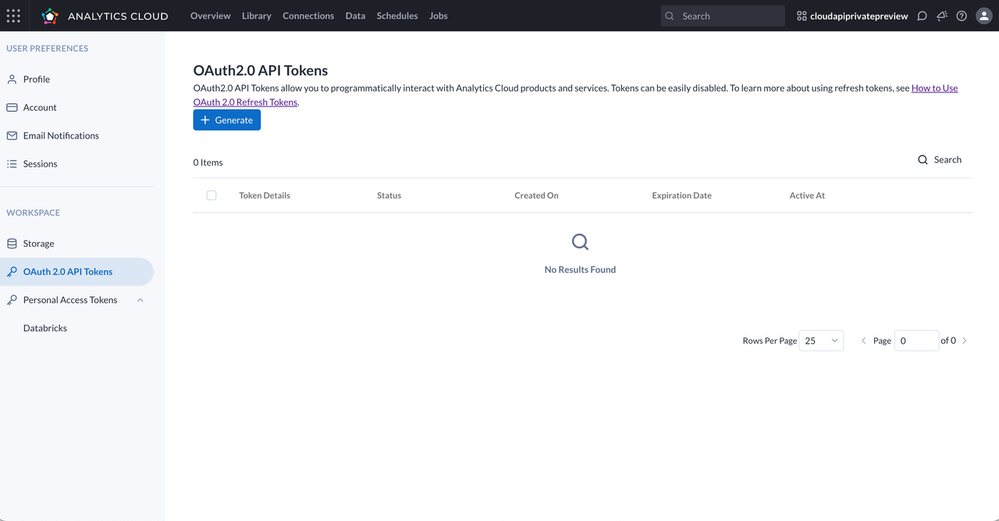
Stop and return to this guide when you reach the “How to use the access token to make an API call” section of the guide.
Create a Plan via an API in Postman
Starting in the Alteryx IO Developer Console, create an API Project by selecting New in the top-right corner. Name your project and click save.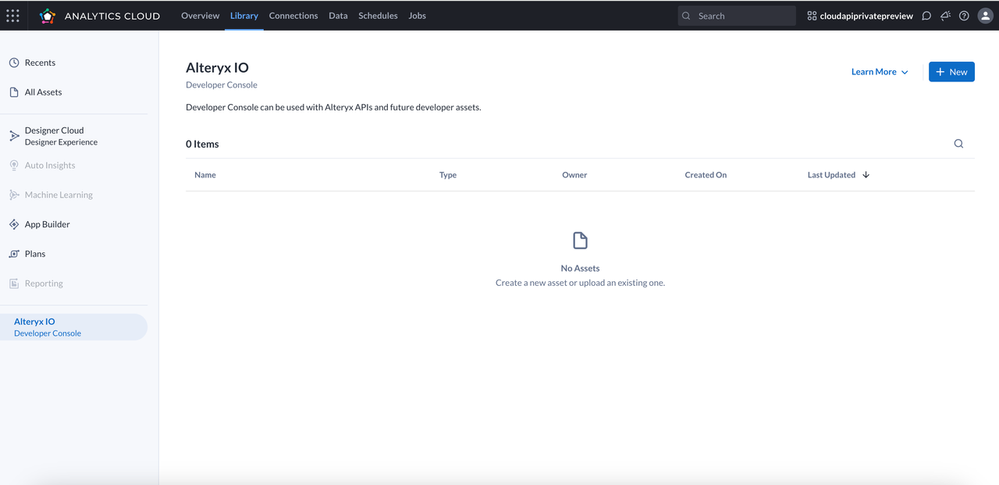
If you click into your project, you’ll see an API Project ID, which is a unique identifier for this project. You will be able to come back to this, but this will become important later!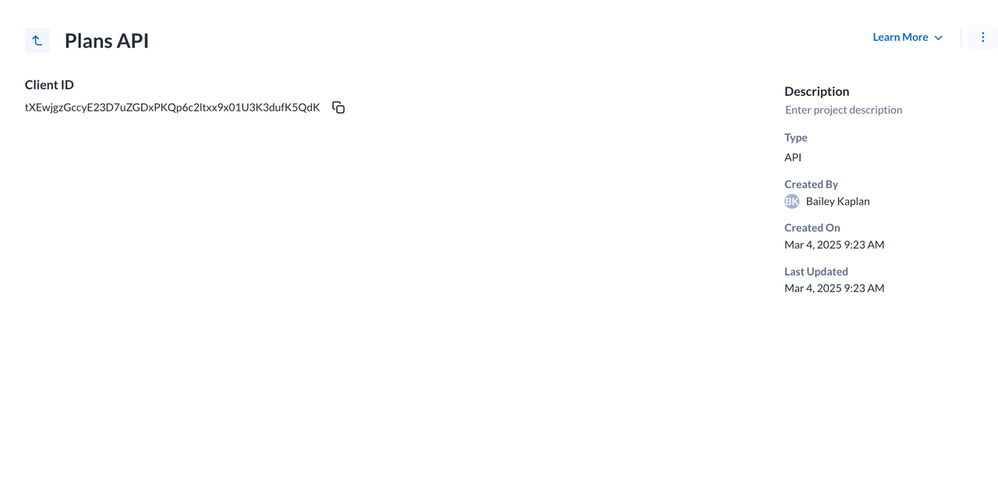
Navigate to https://api-docs.us1.alteryxcloud.com/ to view the API Specs. Find the Plans APIs, and then endpoint for the create a new Plan. Copy this endpoint.
- Note: the endpoint is in the HTTP request box.
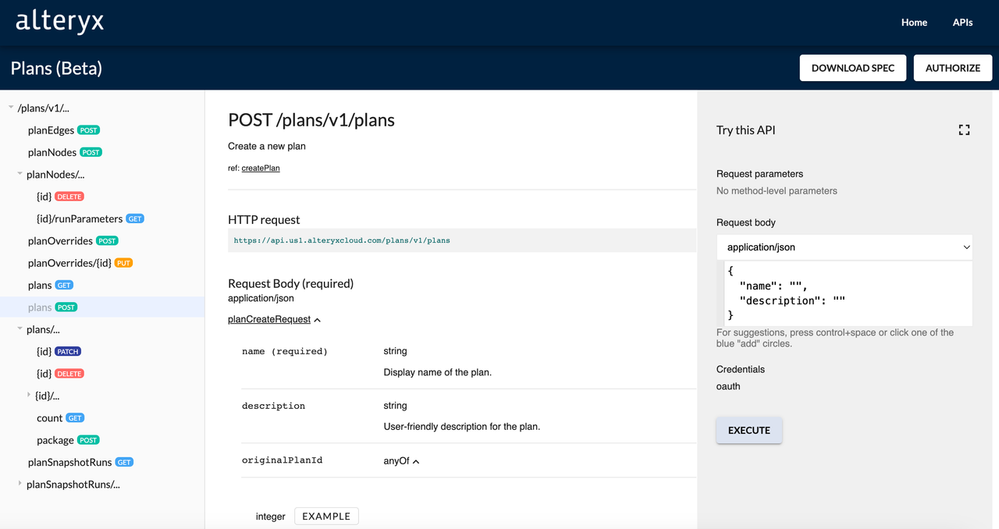
Open Postman and start a new HTTP request. Make sure that you change the method in Postman to match the method for your endpoint (GET, POST, DELTE, etc.).
Now, you’ll have to use your OAuth 2.0 Token that you generated. Go to the Authorization tab and select Bearer Token. Paste your new access token into this field.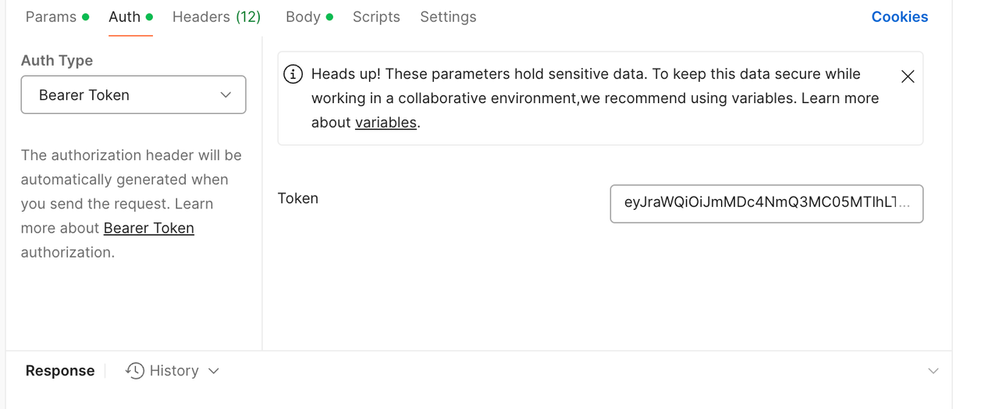
- After you’ve added your access token, you’ll need to add your API Project ID in your Headers tab. Go back to the Alteryx IO Developer Console in AAC, and copy your API Project ID. Type
x-api-project-id and then input your API Project ID.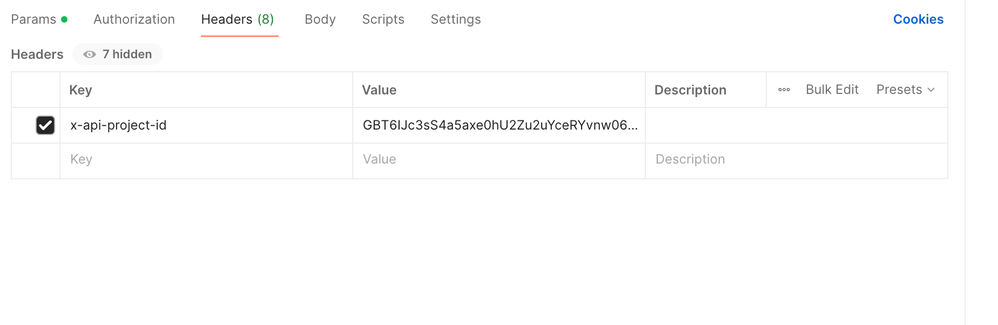
Check if your API has any Query Parameters. If so, copy the query parameter into the Params tab and then choose your value for the value tab.
We also need to specify the content type for our Body as a header. You’ll do this by adding the line Content-Type : application/json.
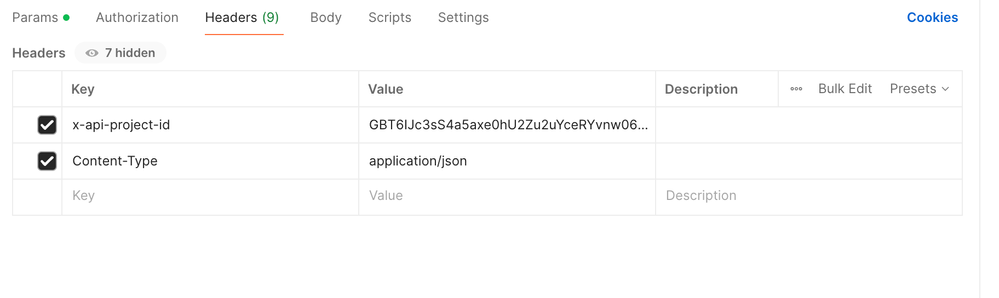
- Note: Most Alteryx APIs use either
application/json or multipart/form-data. You can change the content type by clicking the default type in the API specs.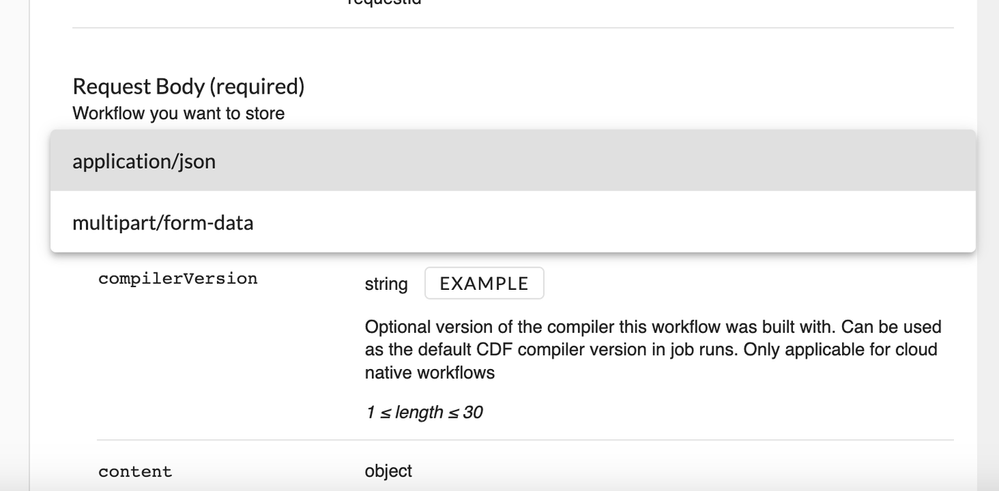
Now, we need to fill out the Request Body. Select the Body tab in Postman. Since we are using the application/json type, we need to change the Body type to raw and then JSON (JSON might populate automatically). This is where you provide the information for the workflow you want to create.
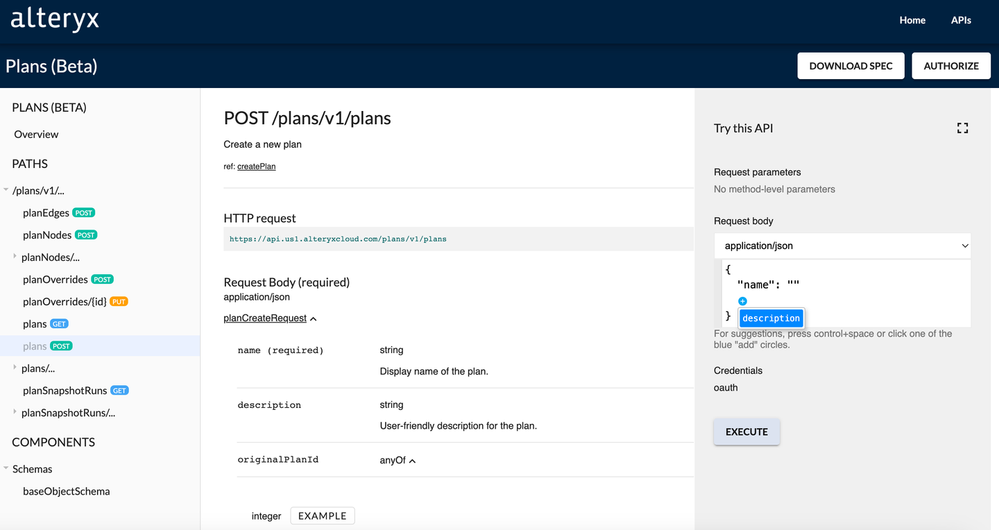
- Note: If you are a proficient programmer, you can write this yourself! I like to rely on the API Explorer for help. In the API explorer, you’ll see a blue plus sign in the Request body. Click the plus sign to add all of the elements to the request body. This API only has “name” and “description” but some APIs have more elements than that!
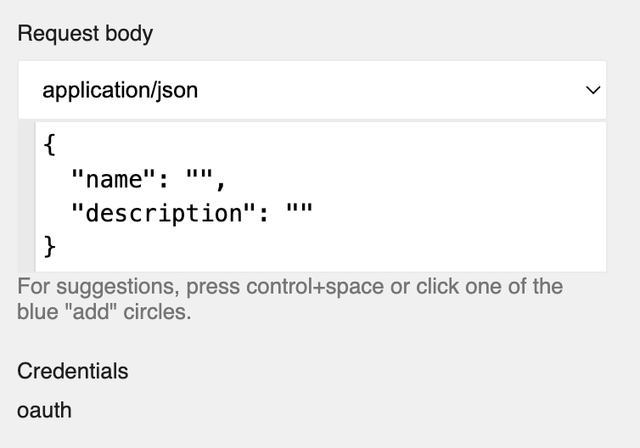
Copy and paste this request body into Postman and fill it out with the required information.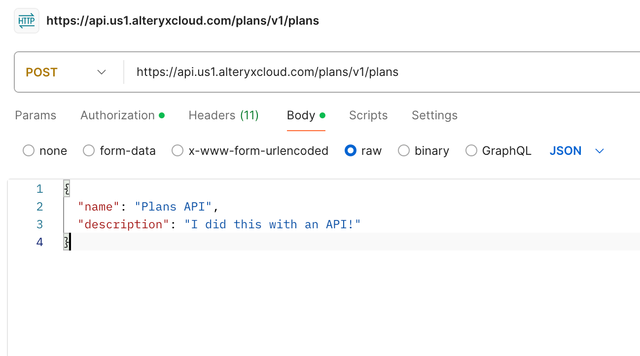
- At this point, you’re probably going to need to refresh your OAuth 2.0 token again since tokens are only valid for 5 minutes.
- Note: I like to keep my initial token call open in Postman, to make it a bit easier to do this. When I want to refresh my token, I just paste the new refresh token into the
refresh_token value and hit send.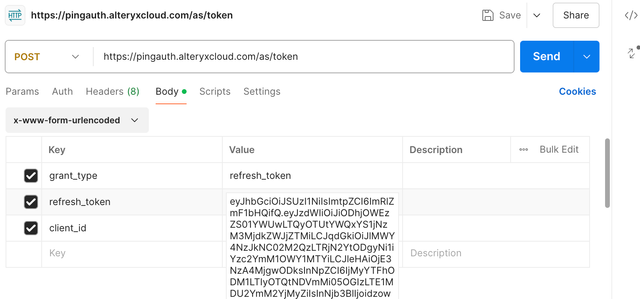
Go to your Auth header of your Create Workflow call, and switch the token type to Bearer Token. Paste your access token into here.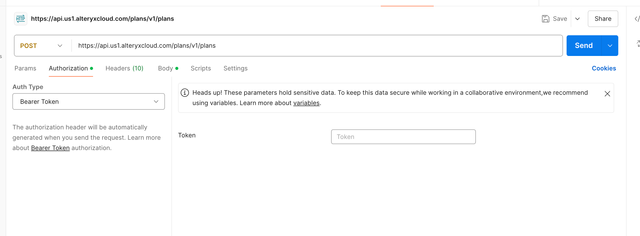
- Now you’re ready to call the API! Hit Send!
If all goes well, you should see a green 200 OK. You should then go to AAC and open up Library and select Plans. Does the plan you just created show up? If so, Congrats! You did it!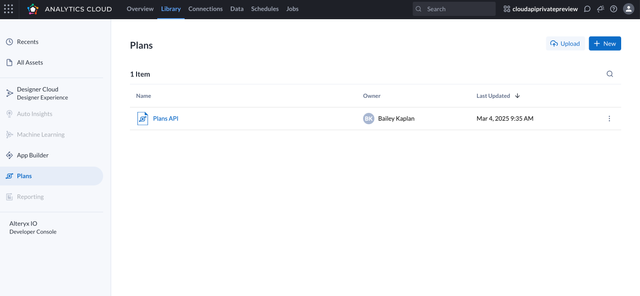
If that didn’t work, try to decode your Postman error. Make sure you refresh your access token before every request.


