This article is part of the Tool Mastery Series, a compilation of Knowledge Base contributions to introduce diverse working examples for Designer Tools. Here we’ll delve into uses of the Find Replace Tool on our way to mastering the Alteryx Designer:

The Find Replace Tool is one of those tools that goes relatively unused and uncelebrated until you stumble into a data blending technique that would be extremely difficult without it – at which point, it becomes your favorite tool in the Designer.

Find Replace to the rescue
You can find it in the Join Category (Ribbon) of Alteryx Designer and it’ll make easy string substitutions in your data that would otherwise require a herculean effort to work around.

Today, we celebrate Find Replace as a hero by exploring three use-cases that exemplify how the Find Replace Tool can be put to good use.
Replacing Text within a String (attached in Find Replace.yxzp):
In this first example, making HTML or ASCII substitutions is effortless using the Find and Replace configuration options in the Find Replace Tool:
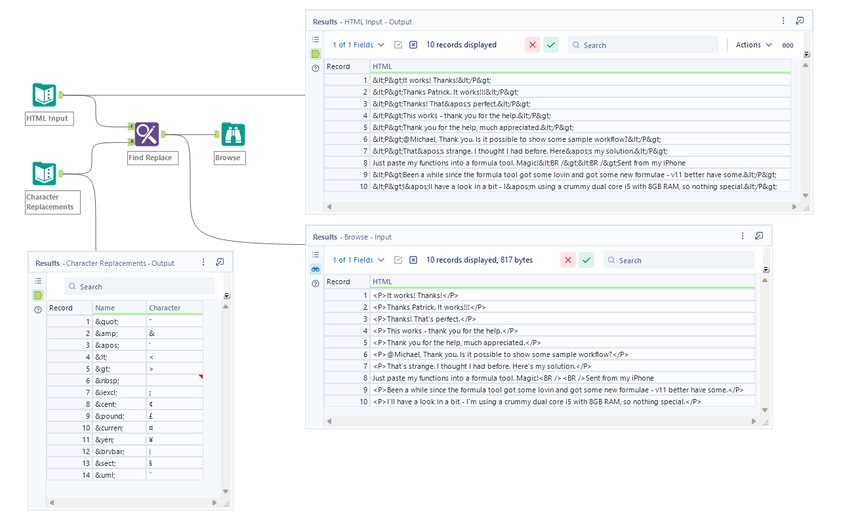
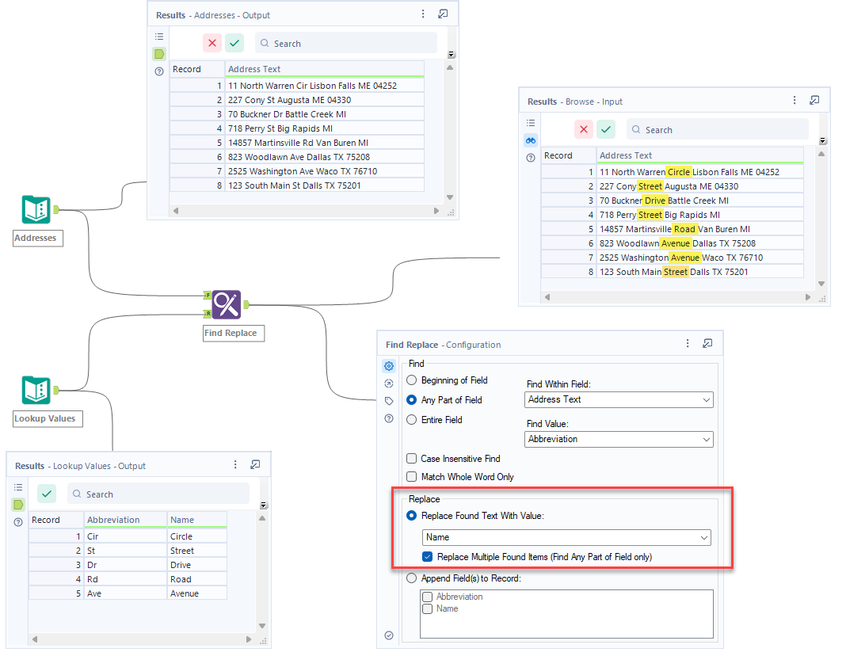
Using Lookup Tables to Standardize Data (attached in Find Replace.yxzp):
In this second example, address abbreviations are easily swapped out with their full text counterparts. There are many examples where crosswalks, like this, can be leveraged to normalize data, leaving you with more normalized outputs.
For these first two use cases (and more), users are able to perform a variety of useful replacements within their data. For more on this, considering the following article: Simplify parsing with Find Replace
Appending New Data
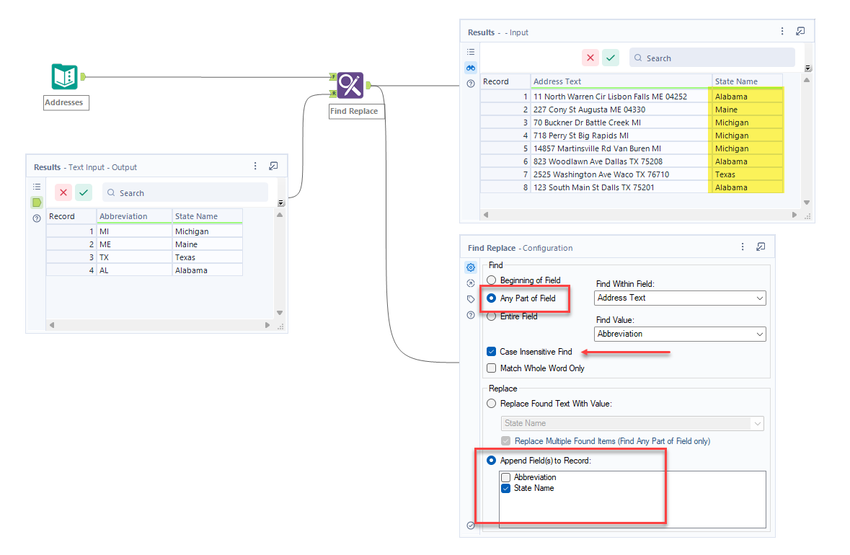
Lastly, the Find Replace Tool can also append data, similar to Microsoft Excels VLOOKUP function. Note that only the first value found within the reference table will be appended to the main dataset. You have the option to include the related field, as well as one or many other fields you want to append.
Additional configuration options allow for matching to occur on the: Beginning of a Field, Any Part of Field, or Entire Field. Case sensitivity can be toggled on and off as well an option to require matching on whole words only.
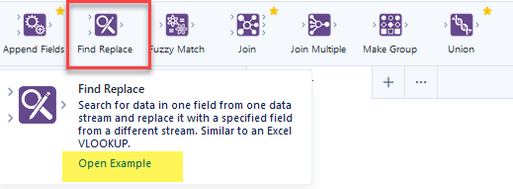
For more information and example workflows, navigate to the Find Replace Tool in Alteryx Designer and select “Open Example”
By now, you should have expert-level proficiency with the Find Replace Tool! If you can think of a use case we left out, feel free to use the comments section below! Consider yourself a Tool Master already? Let us know at community@alteryx.com if you’d like your creative tool uses to be featured in the Tool Mastery Series.
Stay tuned with our latest posts every Tool Tuesday by following Alteryx on Twitter! If you want to master all the Designer tools, consider subscribing for email notifications.
**Note: The graphics contained within this Tool Mastery article have been updated to reflect the current look and feel of Alteryx Designer. The attached workflow may vary slightly from the examples.
Additional Information
Click on the corresponding language link below to access this article in another language -
Portuguese
Spanish
French
German
Japanese