This article is part of the Tool Mastery Series, a compilation of Knowledge Base contributions to introduce diverse working examples for Designer Tools. Here  we’ll delve into uses of the Drop Down Tool on our way to mastering the Alteryx Designer:
The Drop Down Tool is part of the Interface Tool Category and can be used when creating Apps. This tool has many great configurations from loading data from within the workflow to using outside sources to update tools. Hopefully, after reading this article and looking at the samples you will feel more comfortable using this tool in your app user interface.
When building apps, whether to use on your own or to share on a Gallery, the Interface Tools you choose are important for convenience as well as efficiency. One of the more dynamic Interface Tools to use is the Drop Down Tool.
Before we begin, please remember that in order to use the Drop Down Tool properly, your Action Tool will also need to be setup to update the tool using the variables chosen in the Drop Down Tool. To learn more about the Action Tool, see here.
Configuration:
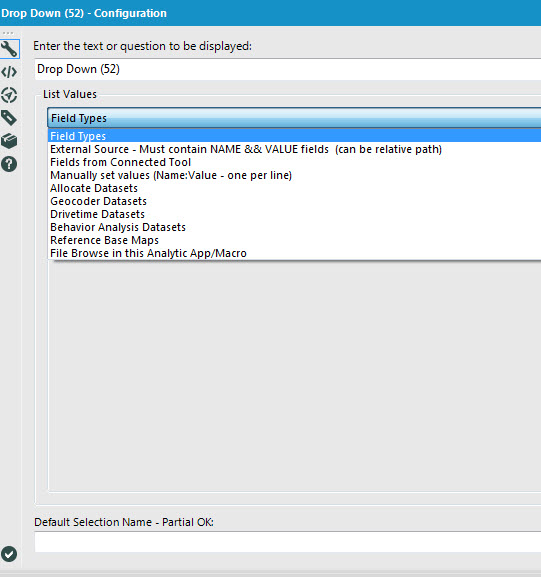
I have attached a workflow that contains a majority of the Drop Down Tool setups, but want to walk through a few specific setups. If you are interested in the other setups you can visit the help for this tool.
External Source - Must contain Name && Value Fields (can be relative path) If you want to use an external file with a Name field that will appear to a user that is associated with a value to update a tool this is a great option. For example, many users will take advantage of this option when they have employees names and employee IDs. The file can be updated with new employees or when employees leave. The user won't need to know the employee ID and just the name, while the workflow will use the employee ID as the variable to update a certain tool. This makes it easier for Alteryx to use an ID rather than using a name especially if people have the same name.
Important pieces to remember in this List Value:
1. The file used must contain the fields Name and Value
2. If the app is used on the Gallery, the source file will need to be included as an asset
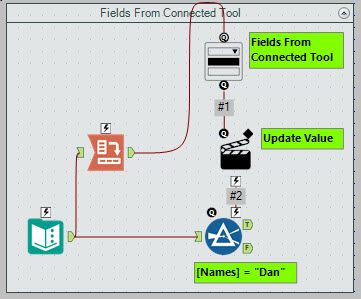
Fields from Connected Tool - This is a configuration that many users have trouble with. The benefits of this List Value is that your Drop Down list can be pulled from your data within the workflow. The important piece of this is to remember that the data you want to be in the Drop Down needs to be in the Field Headers. The best way to accomplish this is to use a Cross Tab Tool.
I have data that looks like below. I want the names to be in my Drop Down:
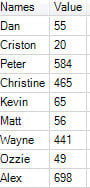
I add a Cross Tab Tool and make the Names my New Column Headers and Value the Values for New Columns. I then need to choose a Method for Aggregating Values so I choose SUM.

I then connect my Cross Tab Tool to the TOP of the Drop Down Tool:
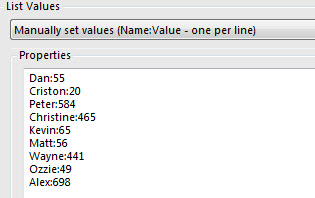
Manually Set Values -This List Value works very similarly to the External Source, but you can embed the Name:Value into the Drop Down Tool itself. This is a great option if you don't have that many options for the user to pick from and can be added from and removed quickly. The important part of the setup is the Name:Value combination. For example Dan:55, the name Dan will show in the Drop Down, but use 55 as the value to update the tool in the workflow:
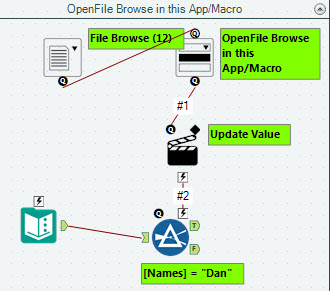
File Browse in this Analytic App/Macro - This options is another great option when you have a different list of Names and Values to update an app. The other Inputs, like the External Source, will need to have the Name and Value as field names. The great option using the List Value is that you can give the user the option to choose different lists based on what they want to use in the Drop Down:
See the attached v10.6 workflow for the examples above.
By now, you should have expert-level proficiency with the Drop Down Tool! If you can think of a use case we left out, feel free to use the comments section below! Consider yourself a Tool Master already? Let us know at community@alteryx.com if you’d like your creative tool uses to be featured in the Tool Mastery Series.
Stay tuned with our latest posts every Tool Tuesday by following Alteryx on Twitter! If you want to master all the Designer tools, consider subscribing for email notifications.


