How To: Schedule a Workflow on a Private Gallery
Scheduling a workflow,application, or package on your company's Gallery allows you to automate a process at a given frequency, date, and/or time. Because your asset is running on a server machine, it will not matter if your computer is connected to a network, or even turned on. In this article, we will describe how to schedule a workflow on a private Gallery.
Prerequisites
- Alteryx Server≥ 11.0
- Gallery scheduling enabled or Admin (Gallery Curator) permissions.
Procedure
- A Gallery Curator must first enable the ability to schedule processes from the Gallery.
For versions 11.0 to 2020.1, after logging in, navigate to the Admin options and click on the Jobs tab on the left side. At the top of the page, you'll see a radio button allowing the feature to be turned on and off:
For versions 2020.2 and later, after logging in, navigate to the Admin options and click on the Configuration tab on the left side. Scroll down the page to the Gallery Settings section, where you'll see a toggle allowing the feature to be turned on and off:
2. Once this option is enabled, users will see an additional option when they select a workflow:
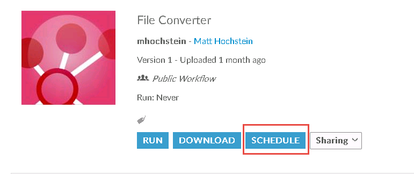
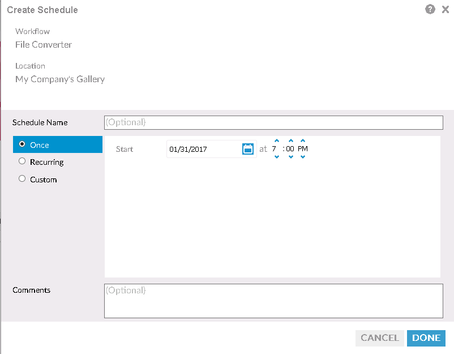
3. Selecting the Schedule option will cause scheduling options to appear, allowing users to select the frequency, timing, and other options related to their schedule:
1. Note: The Scheduler runs based on the time zone of the Server machine itself, not the user scheduling. This means that depending on where the user and server machine are located, Schedules may run at times different from what was set up by the user and needs to be taken into account when scheduling.
4. To view the results of the Schedules, click over to the Workflow Results page.
1. Users will be able to see only the results from their schedules and ad-hoc runs, with a designation as to which runs were Manual and which were scheduled. Gallery Curators (Admin) can see run results for all users.
2. Workflows hit the queue for Scheduler at the time they are scheduled. If the queue is backed up, the workflow will not run until resources are available.

5. You also have the option to schedule a workflow from Designerinstead of Gallery. To do so, navigate to Options > Schedule Workflow.
1.You can add multiple Galleries or Controllers using the Add buttons at the bottom:
 Computer only
  After a Gallery has been added
2. Note: Users scheduling through Designer will still see all workflows published to Gallery and allscheduled run resultsfor allusers.
1. Schedules set up in Gallery will not show in the Schedules tab of the View Schedules window when viewing through Designer.
2. Results of runs set up in Gallery will show up in the Results tab of the View Schedules window when viewing through Designer.
null


