Can we perform this?
Fill the entire Variance and Unit row & if Variance != 0, change the unit value color to Red.
Thanks,
Krishna
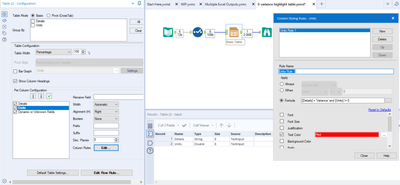
Hey @KrishnaChithrathil, this is definitely possible. I'd first colour the 'Variance' rows with a Row Rule as so:
Then to colour the text red where the variance != 0, I'd use a column rule on the Units field like so:
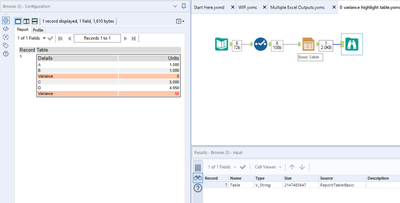
The outcome of those together is this:
If for the output option you choose to overwrite the range rather than the sheet the conditional formatting should not be replaced in Excel.
@DataNath
I tried your workflow, and it's working.
But in my scenario, I'm getting one error.
@KrishnaChithrathil double check the data type of your [Units] column - from that error I'd imagine it's a string type and so you'll either need to put the 0 of the expression in quotes like [Units] != '0', or change the data type of the [Units] field to something numeric.
I modified the formula to this [Description] = 'Variance' and [Units] != '0' and my Units column is int64.
But same error I'm getting.
@oliverd
Couldn't get you properly. Can you rephrase it please?
@KrishnaChithrathil it needs to be one or the other. If you put the 0 in quotes like '0' then your Units column needs to be a string. If you leave it out of quotes, just as 0, then it needs to be numeric. At the moment, you're trying to apply a string expression to a number, hence the error. Try either changing the data type to a string or removing the quotation marks around the 0.
Checked it again.
It's only if there is an existing formatting.
@KrishnaChithrathil are you able to share your workflow at all or show a wider picture? Struggling to recreate the issue myself -
String:
Numeric:
I can understand. but since it contains client information, I'm not supposed to share that.
But to be said, whatever you've provided seems to work in every possible scenarios. That look perfect though. But somewhere something I'm missing out.
No problem @KrishnaChithrathil - my only other suggestion would be to try deleting the Table tool and re-adding it and then trying both ways i.e. with quotes and string data type and without quotes with a numeric data type. That error you're getting definitely occurs when there is a difference i.e. trying to apply a string expression to a number or vice versa. If those don't work then I'm not too sure what else to check without seeing the workflow as I can't replicate it myself.
Sure. I'll check.