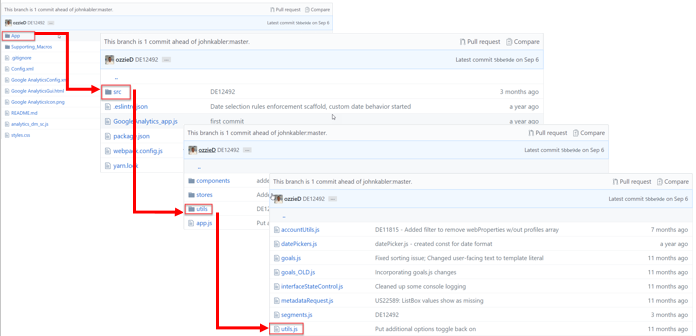
validateToken</code></li></ol><h2 id="toc-hId--438296105">Online Method - login</h2><p>The <code>login function has a few constants needed for the request URL stored in the variable _url.const OAUTHURL = 'https://accounts.google.com/o/oauth2/auth?'
const SCOPE = 'https://www.googleapis.com/auth/analytics.readonly'
const CLIENTID = '552512737410-g6admen5hqg6q268dmt3d9bminlri7en.apps.googleusercontent.com'
const REDIRECT = 'https://developers.google.com/oauthplayground'
const TYPE = 'token'
const _url = OAUTHURL + 'scope=' + SCOPE + '&client_id=' + CLIENTID + '&redirect_uri=' + REDIRECT + '&response_type=' + TYPE
Then the variable win is created using _url as a parameter. Don't worry about the line right below win. The data item is being used to store the error status, which we initialize with a blank value during the login process.
win will open a new window to Google's OAuth URL where the user can login with their credentials.
const win = window.open(_url, 'windowname1', 'width=800, height=600')
Alteryx.Gui.manager.GetDataItem('errorStatus').setValue('')
While the window is open, a poll timer function is running every half second checking if the URL origin has changed to https://developers.google.com. The URL origin will change if the user successfully logins. When that happens, steps 2 and 3 occur. The access token is parsed from the URL using the gup function and stored in the 'access_token' DataItem so that it can be used for the downstream API call in the macro. The access token is then validated using the validateToken function. Both are discussed in the next sections.
If the access token validates successfully the window is closed and the plugin's configuration page changes to the profile selection.
const pollTimer = window.setInterval(() => {
  try {
    if (win.document.location.origin === 'https://developers.google.com') {
      const url = win.document.URL
      const accessToken = gup(url, 'access_token')
      Alteryx.Gui.manager.GetDataItem('accessToken').setValue(accessToken)
      validateToken(accessToken)
      win.close()
      setPage('#profileSelectors')
    }
  } catch (e) {
    // console.log("catch");
  }
}, 500)Online Method - gup
This is a simple function that takes the URL and the query parameter as arguments to identify the value needed. For example, if the function is invoked as gup('<a href="http://www.alteryx.com/index.html?foo=bar&?data=123" target="_blank" rel="nofollow noopener noreferrer">http://www.alteryx.com/index.html?foo=bar&?data=123</a>', 'foo') it will return 'bar'.
const gup = (url, name) => {
  name = name.replace(/[\[]/, '\\\[').replace(/[\]]/, '\\\]')
  const regexS = '[\\#&]' + name + '=([^&#]*)'
  const regex = new RegExp(regexS)
  const results = regex.exec(url)
  if (results == null) {
    return ''
  } else {
    return results[1]
  }
}Online Method - validateToken
After the access token is parsed from the URL, it is validated with the JQuery ajax method. The settings object is the only argument for $.ajax needed because it contains the validation URL and the access token.
If $.ajax is successful, then the Google Analytics will continue to run normally otherwise the tool will error out.
const validateToken = (token) => {
  const VALIDURL = 'https://www.googleapis.com/oauth2/v1/tokeninfo?access_token='

  // API call settings
  const settings = {
    'async': true,
    'crossDomain': true,
    'url': VALIDURL + token,
    'method': 'GET',
    'dataType': 'jsonp'
  }
  return $.ajax(settings)
    .done(ajaxSuccess)
    .fail(connectionError)
}Offline Method
The Offline method is a little more straight forward. As stated above, the user will can get their developer credentials through the help documentation.
Here we'll cover two main functions:
getAccessTokenAjaxCallcheckToken
Offline Method - getAccessTokenAjaxCall
Since the credentials are stored in Alteryx widgets, we can obtain them using the GetDataItem method as shown below. Similar to the validateToken function above, store the values of the credentials in the settings object and use it as an argument for $.ajax.
const getAccessTokenAjaxCall = () => {
  // Add vars for each of the user text box inputs
  const clientID = Alteryx.Gui.manager.GetDataItem('client_id').value
  const clientSecret = Alteryx.Gui.manager.GetDataItem('client_secret').value
  const refreshToken = Alteryx.Gui.manager.GetDataItem('refresh_token').value

  // API call settings
  const settings = {
    'async': true,
    'crossDomain': true,
    'url': 'https://accounts.google.com/o/oauth2/token',
    'method': 'POST',
    'dataType': 'json',
    'headers': {
    'cache-control': 'no-cache',
    'content-type': 'application/x-www-form-urlencoded'
  },
  'data': {
    'client_id': clientID,
    'client_secret': clientSecret,
    'refresh_token': refreshToken,
    'Host': 'accounts.google.com',
    'grant_type': 'refresh_token'
  }
 }

  return $.ajax(settings)
    .done(checkToken)
    .fail(connectionError)
}Offline Method - checkToken
If the AJAX request was successful, checkToken will proceed to run. Here we obtain the access token and set the value of the 'accessToken' DataItem to the access token we just received. Once set, we remove any error messaging and display the proper HTML page to the user.
const checkToken = (data) => {
  if (typeof data.errors === 'undefined') {
    // Set access token
    const accessToken = data.access_token
    Alteryx.Gui.manager.GetDataItem('accessToken').setValue(accessToken)
  }
  // Remove any error messaging
  store.errorStatus = ''
  // Change page to current page or profileSelectors
  console.log('store page: ' + store.page)
  switch (store.page) {
    case '':
      displayFieldset('#accessMethod')
      break
    case '#offlineCreds':
      store.page = '#profileSelectors'
      displayFieldset('#profileSelectors')
      break
    default:
      displayFieldset(store.page)
  }
}Store Access Token in Data Items
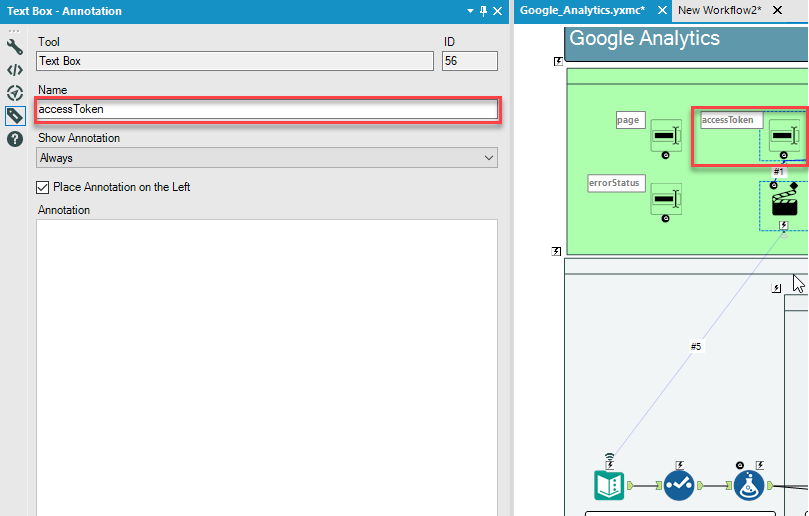
Now if you noticed in both the Online and Offline methods, the access token is stored in the accessToken DataItem. Once this value is stored in this DataItem, it will actually be passed down into a textbox interface tool inside Google_Analytics.yxmc macro, which is the engine of the connector. This DataItem can be associated with the TextBox interface matching annotation name. When this happens the DataItem will now be present in this tools configuration XML. When the tool runs, the access token will be available in stream and will eventually get passed on to a Download tool as a header in the subsequent calls. This must done for any key-value pair if it needs to be used in the macro engine.
And that's it! This is how authentication works for the Google Analytics connector. Other tools that use this method include Adobe Analytics and Google Sheets.
Please ask any questions and share any comments or tools you've created! We love seeing what fellow Alteryx developers build.