
This article is part of the Tool Mastery Series, a compilation of Knowledge Base contributions to introduce diverse working examples for Designer Tools. Here we’ll delve into uses of the Transpose Tool on our way to mastering the Alteryx Designer:
The Transpose tool pivots data for all selected fields. The column headers are listed in the name field and the corresponding data items are listed in the value field. You can also select key fields which will remain unchanged through the transformation. The transpose tool is often used in conjunction with the Cross Tab tool, which essentially works in the opposite direction.
Transpose Data to Summarize Rows
I’ll be using some birth rate data from the World Bank Group. I’ve included the relevant data in the attached v11.3 Alteryx workflow Transpose.yxzp. Here is a quick look at the original data in Alteryx:

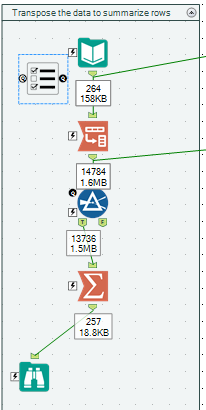
Suppose that we wanted to get some basic statistics by country like average, min, max and standard deviation. Since this data goes all the way back to 1960, we’ll let the user select what years they want to include. The Summarize tool is the one for the job, but it needs the data to be oriented differently: it needs the years running down a single column with data points in another column. That is where the Transpose tool can help:
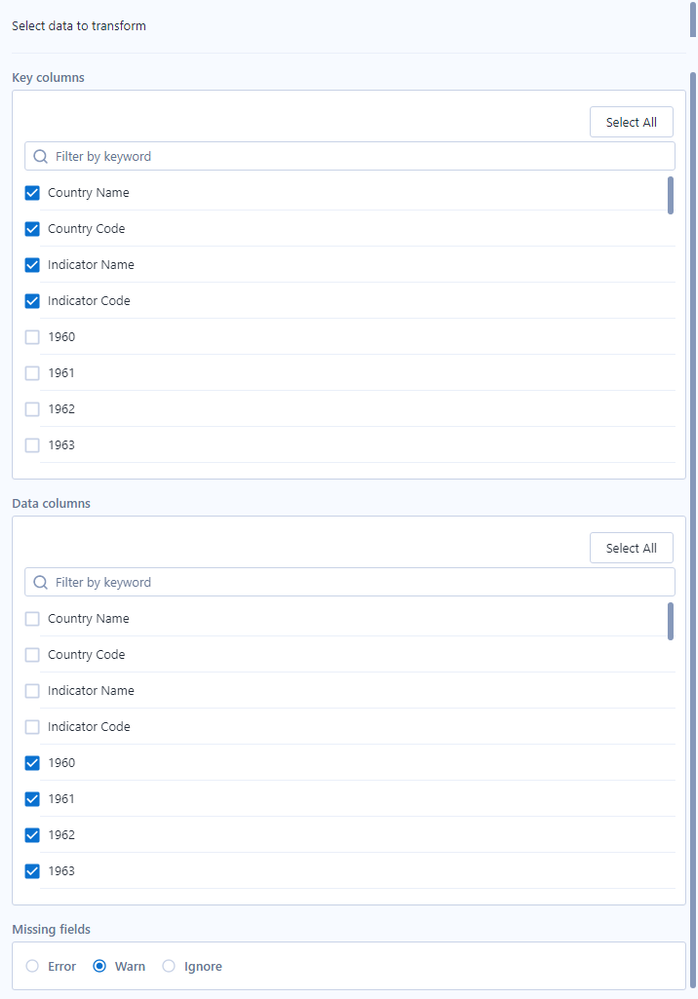
For the Transpose tool, we’ve selected a few key fields and then checked all the years as data fields:
This transforms our original data into this:
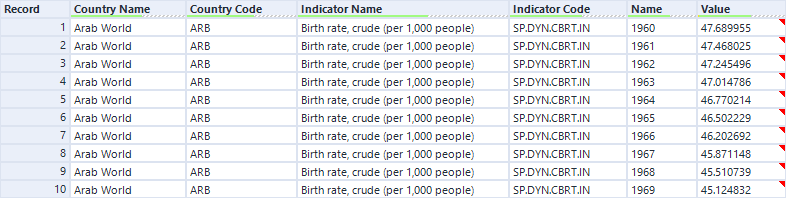
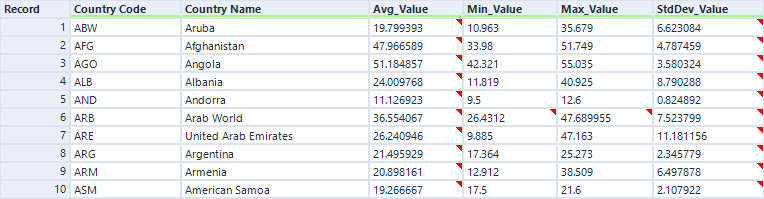
Notice that our 4 key fields remain unchanged and our data fields are transposed. We use the Filter tool to grab the user-selected years and eliminate null values. Now the Summarize tool can use the value field to calculate the numbers we’re looking for:
Excel Transpose
For anyone familiar with the Transpose option when pasting in Excel, it’s helpful to note that Alteryx’s Transpose tool is not the same; however, it is possible to transpose data just like excel by adding a few more tools:
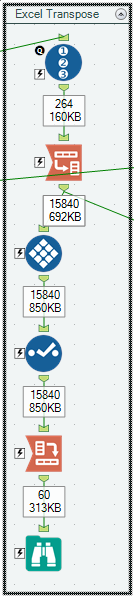
First we add a RecordID tool before transposing the data using the recordID as the key and all the original fields as data. We then want to add another recordID tool grouped by our first recordID after the transpose, so weuse the Tile tool. We then use a Select tool to make sure our Tile_Num field is before the Name field. The Tile and Select tools are used to help the Cross Tab keep things in order. It’s important that the field for sorting (Tile_Num in our case) be before any fields we’re using for grouping in the Cross Tab. Note how the Cross Tab is configured:
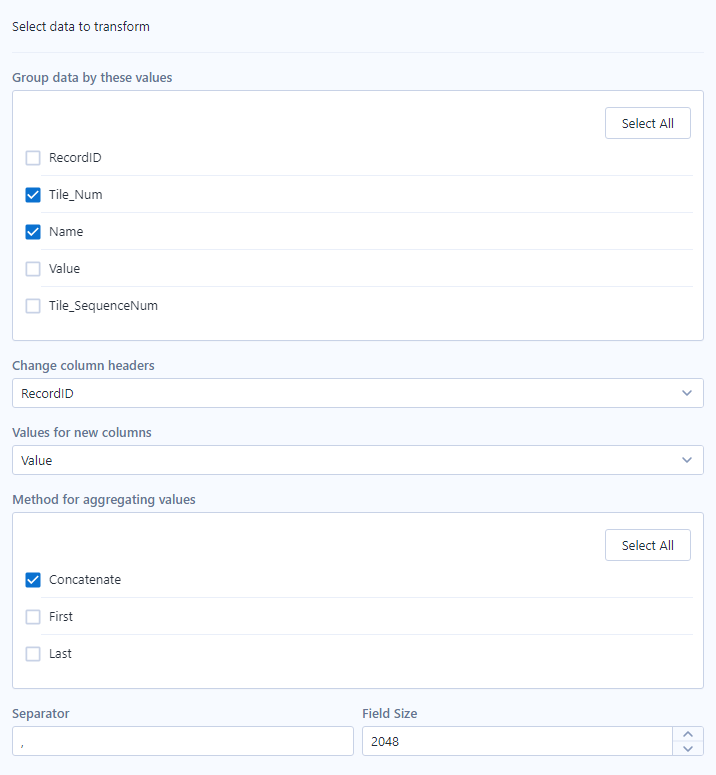
And voila! The result now matches the transpose option when pasting in excel. Feel free to check out the excel file where I’ve transposed the data using excel so you can verify that it matches what Alteryx is doing.
Perform Calculations on Columns
About once a month somebody will post on the Community with the same basic concept: they have their data in excel and can write a simple formula that references columns (D1 = A1 + B1). They can copy that formula over and get the solutions for all their columns (E1 = B1 + C1 etc.). How can they do this in Alteryx? We don’t want to write out a separate formula for each column. Someone will quickly come to the rescue and point out that transposing the data will allow them to solve their problem.
For our birth rate data, let’s suppose we wanted to calculate the yearly change for each country for all the years. For 1961, we would want Birth Rate1961/Birth Rate1960 -1. For 1962, it would be Birth Rate1962/Birth Rate1961 -1, etc. We can start with the transpose just like in our excel transpose example, and then use the Multi-Row Formula tool to do our calculations before cross tabbing the data back:
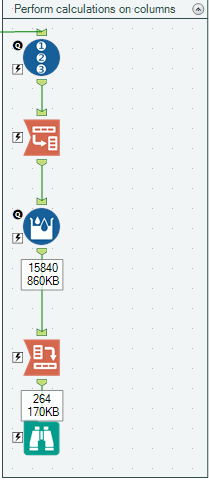
It’s hard to visualize how this is working, so definitely walk through the data at each step to see for yourself!
Setup Name Value pairs for Interface Inputs
You may have noticed in our first example that the List Box tool was referencing an input file that held all of our years to choose from. In order to produce that list from the data, we can use a Transpose and Summarize tool:
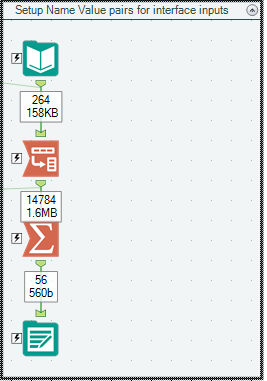
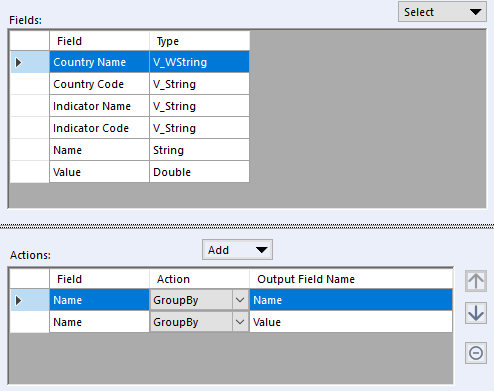
For the List Box tool, you literally must have a field called “Name” and a field called “Value.” In our case, we want them both to be the years which are in our Name field from the Transpose tool. We’ve setup our Summarize tool to create these fields like so:
There you have it! The Transpose tool is an extremely versatile tool, but it does take some time to get used to. Just remember that it will always output your key fields plus a name and value field. Notice that it is often used in conjunction with the Cross Tab tool.
By now, you should have expert-level proficiency with the Transpose Tool! If you can think of a use case we left out, feel free to use the comments section below! Consider yourself a Tool Master already? Let us know at community@alteryx.com if you’d like your creative tool uses to be featured in the Tool Mastery Series.
Stay tuned with our latest posts every Tool Tuesday by following Alteryx on Twitter! If you want to master all the Designer tools, consider subscribing for email notifications.
Additional Information
Click on the corresponding language link below to access this article in another language -
Portuguese
Spanish
French
German
Japanese


