
Thisarticle is part of the Tool Mastery Series, a compilation of Knowledge Base contributions to introduce diverse working examples for Designer Tools. Here we’ll delve into uses of the Multi-Row Formula Tool on our way to mastering the Alteryx Designer:
The Multi-Row Formula Tool functions much like the normal Formula Tool but adds the ability to reference multiple rows of data within one expression. Say, for example, someone was on the ground floor of a house and had a Formula Tool. They would only be able to talk to the people also on the ground floor. If they had a Multi-Row Formula Tool, though, they would also be able to talk to the people upstairs, in the attic, and in the basement as well.

The Multi-Row Formula Tool allows the user to either update an existing field or create a new one. Both options can be very helpful, and there are many use cases for each. The use cases we detail below are attached in the v11.0 workflowMulti-Row.yxmd.
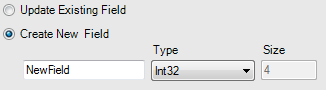
Update Existing Field
Often times, data can be arranged in a way that would look good in Excel but is not realistic to work with in Alteryx. In these instances, you might want to “fill down” a column that has missing values.
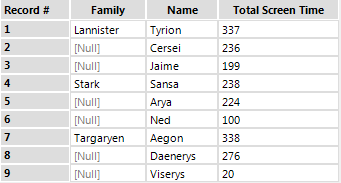
In this case, only the first person in each family has their family name populated. Therefore, we would like to modify the Family field where it is currently Null(). This can easily be accomplished like so:
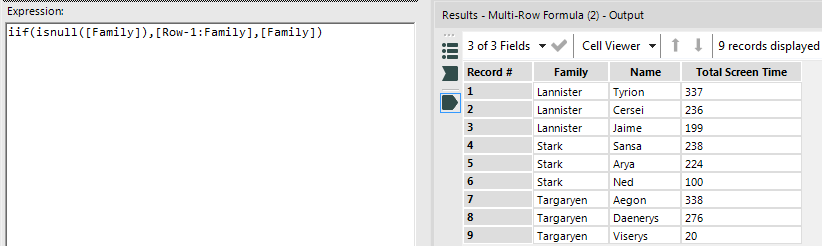
To easily get Variables and Functions into the Expression box, simply double click them from their corresponding tab in the Configuration.
Create New Field:
- Create Unique ID for Each Person In Group:
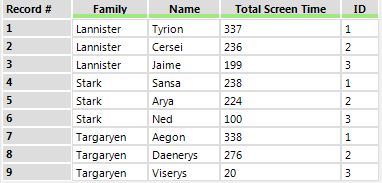
Now that the data is cleaned up, we want to add a unique ID to each person according to the family they belong to. In order to accomplish this, we will configure the Multi-Row Formula Tool as follows:
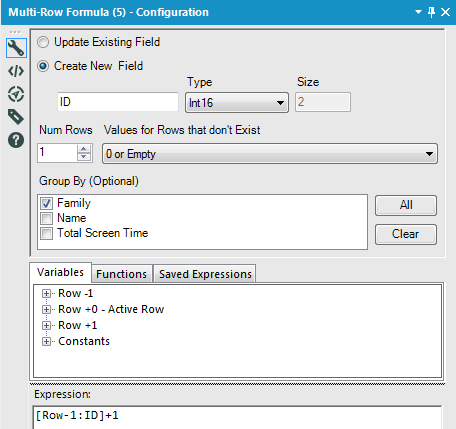
When creating a new field, the user has the ability to select what field type to give it. Here, Int 16 was chosen. Note that we are grouping by Family because we want the ID to be unique within each family, but it can start over with different families. This new ID field could be used later as an identifier with tools like Filter, Summarize, and more.
What is a good Multi-Row Tool without the ability to reference more than just the rows directly before or directly after it? By changing the value in Num Rows in the Configuration, you are able to increase the number of rows you can use in your expressions.
In this example, we increased the Num Rows to 2. Notice how there are now more variables to select from in the middle section on the Configuration. Because we want the running total by family, we again group by this field.
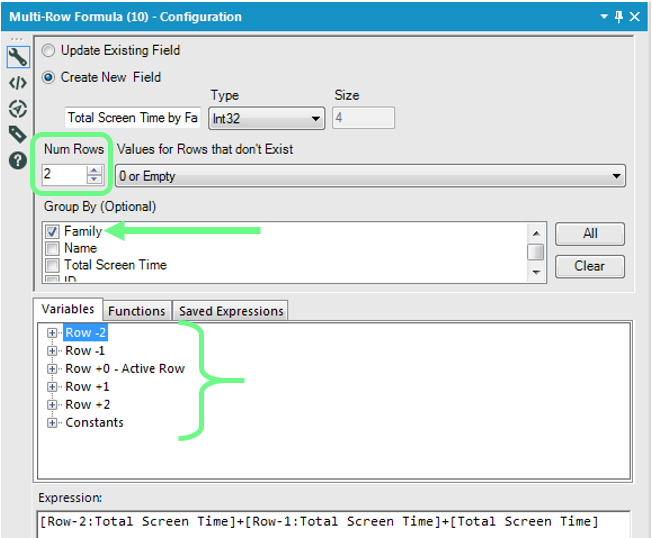
This method can be extended to generate running totals in many different scenarios including monetary sales, item counts, and more.
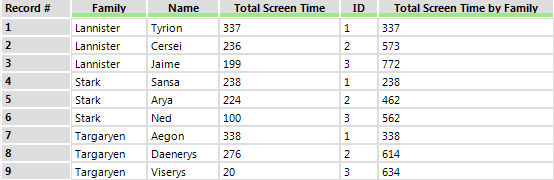
Now we want to calculate the average amount of total screen time by family. In this Multi-Row Formula Tool Expression box, we write:
iif([ID]=3,average([Row-2:Total Screen Time],[Row-1:Total Screen Time],[Total Screen Time]),iif([ID]=2,average([Row-1:Total Screen Time],[Total Screen Time],[Row+1:Total Screen Time]),average([Row+2:Total Screen Time],[Row+1:Total Screen Time],[Total Screen Time])))
This checks each row’s ID value and customizes the formula to generate an average by using the correct rows.
- Difference From Previous:
The last part of the configuration for this tool that has not yet been changed is the Values for Rows that don’t Exist drop down. This tells Alteryx what to use when a formula needs to use the value of a row that doesn’t exist (hence the name of the drop down). This would happen, for example, when calculating a value for the first row of data when the expression contains a Row-1 variable. The user can choose what that non-existent row value is.
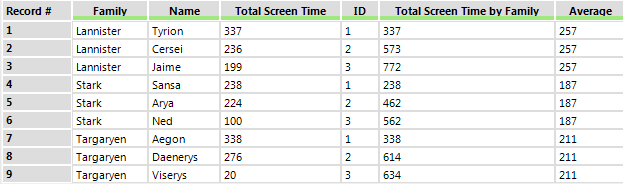
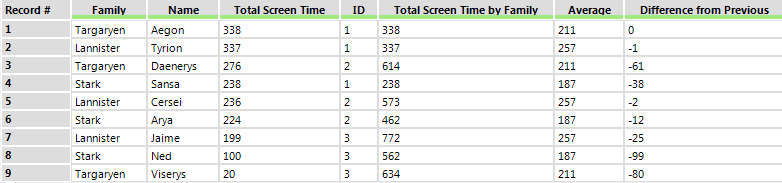
In this example, the row that doesn’t exist is set to the closest valid row. That way, when the formula tries to use [Row -1: Total Screen Time] on row 1 and sees that it doesn’t exist, it uses row 1’s value instead. This results in the difference of 0 that you see in the output.
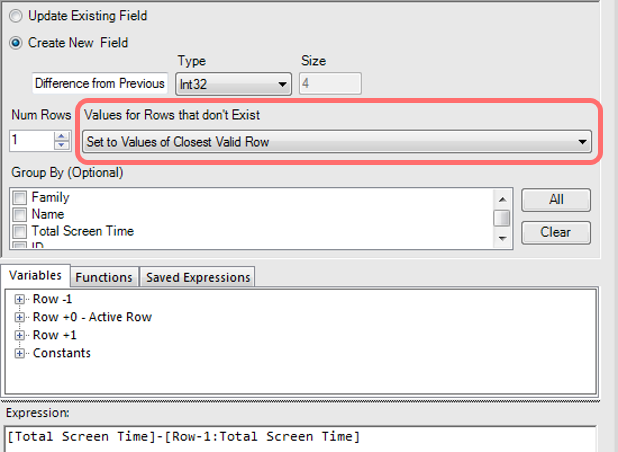
A Sort was placed before this Multi-Row Formula Tool to sort Total Screen Time in descending order. The above formula created a field that is the difference between the current row’s total screen time and the previous row’s total screen time. This makes it easy to see how much more screen time each person needs in order to catch up to the person ahead of them.
Many times the Multi-Row Formula Tool will be used in combination with the Cross Tab Tool. This is particularly helpful if you are trying to transform a couple columns of data into a table. One member of the Alteryx Community had this exact problem and was able to get it solved in this post.
The Multi-Row Formula Tool can only update one field per tool instance. If you would like to update multiple fields (and you feel comfortable with both the Multi-Row Formula Tool and the Multi-Field Formula Tool), try out this macro that was posted on the public Alteryx Gallery.
By now, you should have expert-level proficiency with the Multi-Row Formula Tool! If you can think of a use case we left out, feel free to use the comments section below! Consider yourself a Tool Master already? Let us know atcommunity@alteryx.comif you’d like your creative tool uses to be featured in the Tool Mastery Series.
Stay tuned with our latest posts every#ToolTuesdayby following@alteryxon Twitter! If you want to master all the Designer tools, considersubscribingfor email notifications.
Additional Information
Click on the corresponding language link below to access this article in another language -


