This article is part of the Tool Mastery Series, a compilation of Knowledge Base contributions to introduce diverse working examples for Designer Tools. Here we’ll delve into uses of the Multi-Field Formula Tool onour way to mastering the Alteryx Designer:
Tool Introduction
The Multi-Field Formula Tool offers the same functionalityas the Formula Tool, but offers the added benefit of applying a function across multiple fields of data all at once. Gone are the days of writing the same function for multiple fields.
Sample Explanation
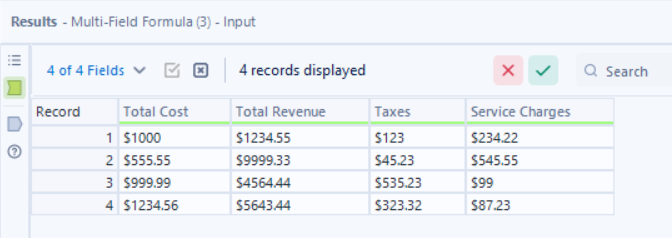
Say there are four fields with dollar signs ($) that need to be removed. A sample of the data looks like this:
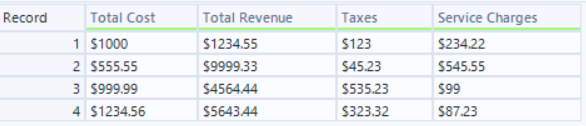
It could be done with a Formula Tool and a function written for each field:
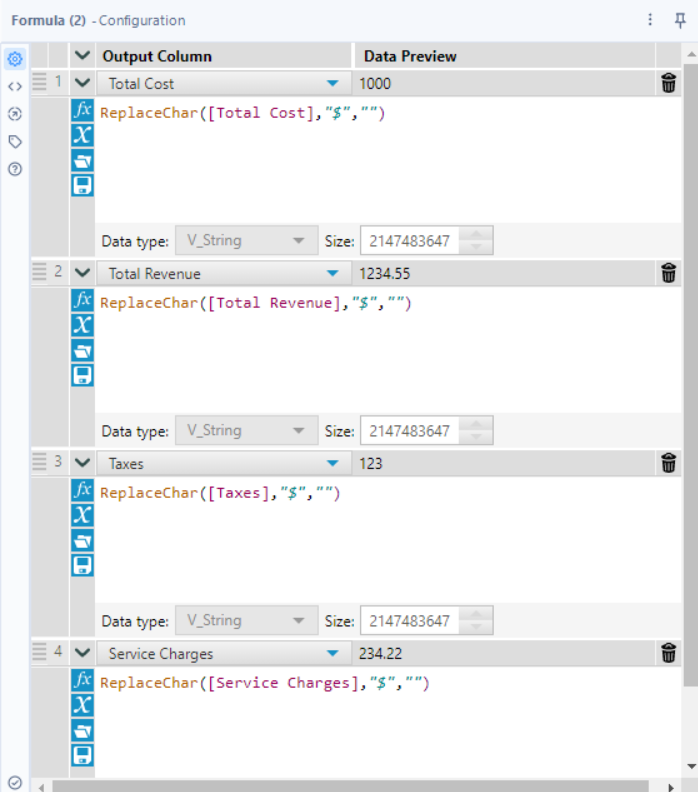
But doing so would have some downsides:
- We know the data type should be numeric, but changing it with the formula keeps it in its original data type format. This means that it is not dynamic enough and we will need to add more controls thereafter.
- Although the formula tool does the job well, it is still hardcoded to do it. Imagine having new fields coming in that are numeric in nature and will also have the $ sign, the formula tool will need to be configured at each turn whenever a new field is in.
- Writing so many expressions may seem okay with a few fields, but once you have tens, hundreds, or even thousands of fields, the formula tool is no longer scalable or sustainable.
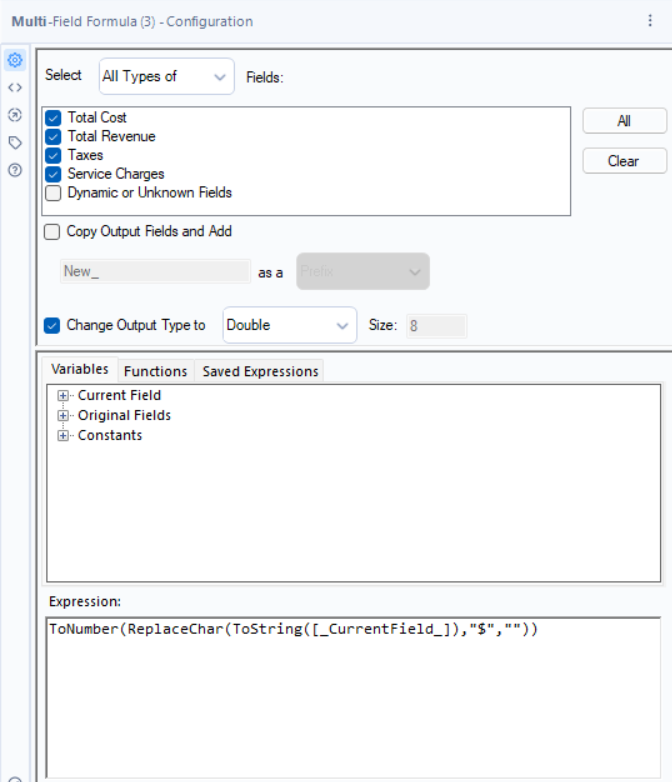
So how do we counter the downsides mentioned above? We write it once in the Multi-Field Formula Tool:
Before:
After:
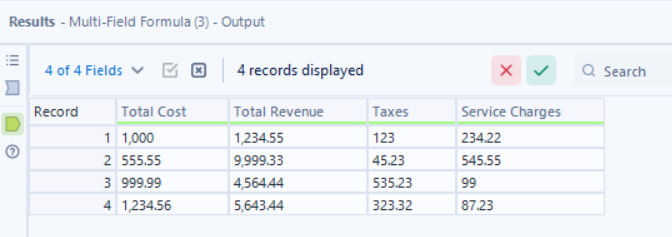
This will save time if any edits are needed and keep workflows a little cleaner. It is also dynamic and can allow you to create new fields or change the data type / size too!
Tool Deep Dive:
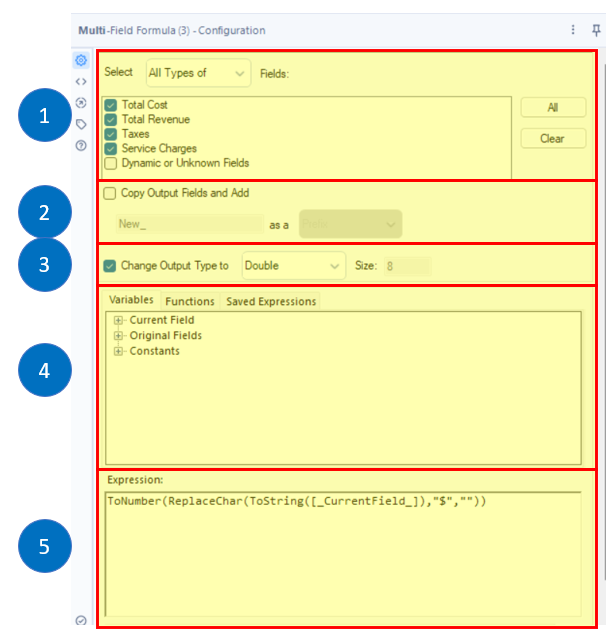
- Selections: Make sure the correct field/data types are selected for the function being performed (e.g. string functions being applied to string fields). This allows you to select all relevant fields and allows you to select Dynamic or Unknown fields that may come later - thereby allowing greater flexibility in preparing the data.
- Create New Fields: By default the ‘Copy Output Fields and Add’ check box is selected. This keeps the original fields and adds the output data as new fields at the end of the dataset with the specified prefix or suffix. This is useful if you do not intend to change the original field's data type, size, and content.
- Change Data Type: The output data type can be changed using the ‘Change Output Type’ check box. When using this option keep the resulting data type of the function in mind and make sure it matches the selected output data type. In our example, we can clearly see that the fields of interest are numeric in nature - so it makes sense to convert them to a numeric data type in one go rather than having multiple tools to do it.
- Choosing Variables: The variables under 'Current Field' will use the fields selected in section 1 in the above image. This allows it to be flexible as it can change user defined constants as well, thereby making it more adaptive to the developer's needs. It also allows for the dynamic field selection and it allows for greater flexibility with current fields / exact fields selection.
- Expression: Just like your formula tool or any tool with an expression box, it allows the developer/user to define the transformation needs to make the data useable. For our example above, using [_CurrentField_] in the expression will use the selected field names individually in the function and transform each one the same way.
You can also reference the field name or data type in your formula by using _CurrentFieldName_ or_CurrentFieldType_, respectively. This allows for greater expression capabilities than other tools, and when used with other tools, will be a solid plus to your workflow's dynamic status.
Use Cases:
Use this tool for the same use cases as the Formula Tool with the added flexibility of applying the same function across multiple fields at once! Update fields, perform calculations, cleanse data…
In the attached example 3 Multi-Field Formula tools are used to update 8 fields! (The example workflow is compatible with Alteryx 10.5 and later.)
By now, you should have expert-level proficiency with the Multi-Field Formula Tool! If you can think of a use case we left out, feel free to use the comments section below! Consider yourself a Tool Master already? Let us know at community@alteryx.com if you’d like your creative tool uses to be featured in the Tool Mastery Series.
Stay tuned with our latest posts everyTool Tuesdayby followingAlteryxon Twitter! If you want to master all the Designer tools, considersubscribingfor email notifications.