We receive quite a few questions on how to properly chain workflows together. We have a few options that depend on what Alteryx type you are using.
If you have Designer only, your options are to use the Crew Macros which are found on the Community. No link provided as the tools get updated. Please use the Community search for the latest Crew Macros.
In the Crew Macros set, the tools that you will be looking to use are the Runner Tools. You can find a description of the tools here Runner Tools.
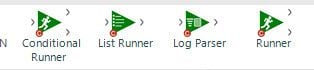
Note: You will have to create another workflow using these macros to execute the workflows.
If you have Designer with Scheduler, you can use the Crew Macros on the Scheduler, but they are not recommended or supported in this configuration. Using Runner Macros on an Alteryx Server or Gallery can risk over-utilization of resources and cause instability in an Alteryx Server or Gallery environment and thus Runner Macros are not supported on Alteryx Server. There are other options that will allow you to use the workflow on the Gallery or Scheduler.
When you have Scheduler or Server you have access to the Alteryx Engine Command. This will allow Alteryx to run workflows through the command line to execute additional workflows or programs. In most cases, the AlteryxEngineCmd.exe will be located in C:\Program Files\Alteryx\bin\AlteryxEngineCmd.exe.
Great, so what do I do with it?
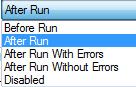
In your Workflow Configuration window, you have a tab called Events. In that tab you can add a Run Command event. You can choose to run the command as:
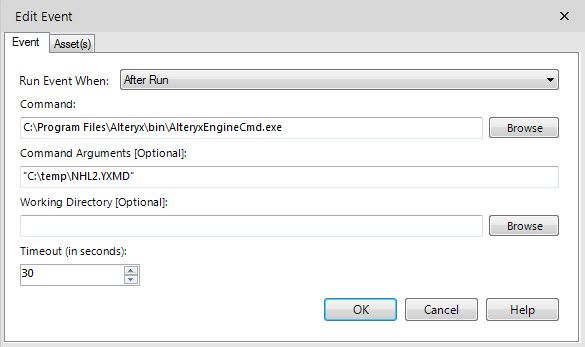
In the Command: you can either browse to your AlteryxEngineCmd.exe or type in the location like so -C:\Program Files\Alteryx\bin\AlteryxEngineCmd.exe
In the Command Arguments [Optional]: You will add the location of the 2nd workflow along with the name of the workflow and file type.
example: "C:\temp HL2.YXMD"
VERY IMPORTANT: Notice in the example above that we have quotations around the string. The reason for this is that the command has difficulty with spaces in the directory paths. By putting quotes around the string, this tells the command to essentially ignore the spaces. However, best practice is to not have spaces in your directory paths when using this command.
Sample:
Note: This method is a great method, but can be finicky. if you are running other command process or do not have admin access to the folders it can cause issues.
You have another option as well! You can turn your workflows into apps for either Gallery or Scheduler use and have them run consecutively.
When you drag an Interface Tool onto the canvas your workflow will automatically change to an App. If you don't want to use an Interface tool you can still change the workflow to an app to use the chained app option. Once you change the workflow to an app, you can use the Interface Designer window to chain the apps together.
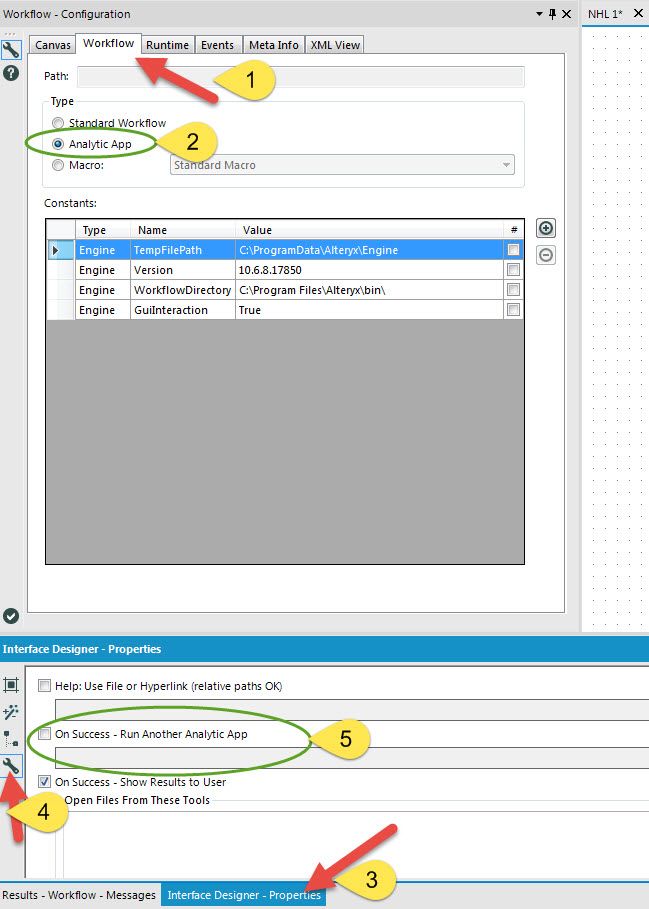
Note: Running Apps via a schedule is not currently supported as you cannot provide the required input at run time. As such you should not be able to schedule an app, and if you can schedule an app the first step in the chain would fail/error due to lack of input. This would cause later steps not to run due to the on success criteria of running the next app in the chain.
Want to know more about the Interface Designer?Interface-Designer-Part-1
Want to schedule workflows to run consecutively? Check out this article -Scheduling-Workflows-Using-Event-Run-Command


