This article is part of the Tool Mastery Series, a compilation of Knowledge Base contributions to introduce diverse working examples for Designer Tools. Here we’ll delve into uses of the Generate Rows Tool on our way to mastering the Alteryx Designer:
The Generate Rows Tool, which is part of the Preparation tool category,creates new rows of data based on a user defined loop expression. It is especially useful when creating sequences of numbers or dates.
For example, let's say you have a dataset with products that aren't sold very often (not every month) but you would like to create recordsfor every month and fill in quantity and amount as zero for reporting purposes. You can use the Generate Rows Toolto take the earliestmonth on the dataset, increment that by one month (generating a new row each time) until it has reached the latest month or the month you are in.
To do so, first use a SummarizeTool to identify both the min(earliest) and max(most recent)dates in your data:
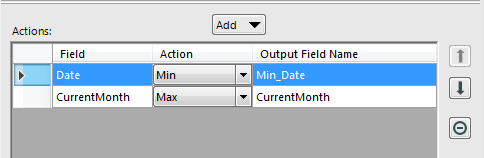
In this example, we created a field called CurrentMonth to be used as the max date, but you could certainly use a date provided on your data set.
Then, set up the Generate Rows Tool as follows:
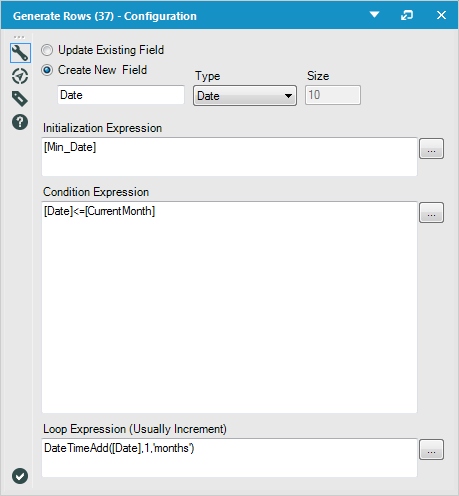
We are creating a new field called [Date] that will hold all of the date values between the earliest date on the data set and the current month.
The Initialization Expression, [Min_Date], is the starting value that will be used for the first row. In our case, it is the earliest date on the data set as identified by the Summarize Tool.
The Loop Expression is what is being used to generate new rows. In our case, it increments [Date] by one month until the Condition Expression is met. As long as the Condition Expression returns true, another row will be created. Once the Condition Expression returns false, no more rows will be created.
Once these rows are created, you will have to join them back to your dataset and fill in any missing columns appropriately. See the attached v10.5 workflow (GenerateRows.yxmd) for an example of how to do that.
Another example that uses dates generated by the tool would be to calculate the difference between two dates. If you want to just know the number of days, you can use the date time functions, but what if you want to count the number of Sundays between two dates?
If you have a Start Date and an End Date, you set up the tool very much like in the example above, but instead of incrementing by 'months', you would increment by 'days'.
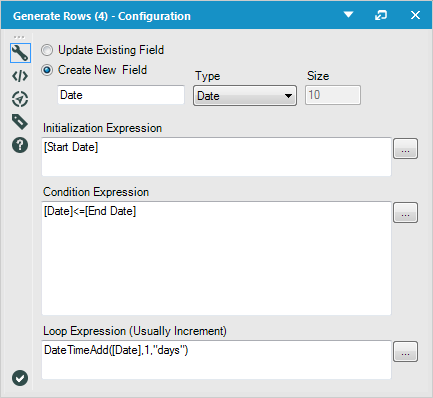
Then you can format the Date created by the Generate Rows Tool to find the day of the week using this formula: DateTimeFormat([Date],"%A"), filter for Sundays and count the number of rows. See the attached workflow v10.5Generate Rows II.yxmd for an example of how to count Sundays.
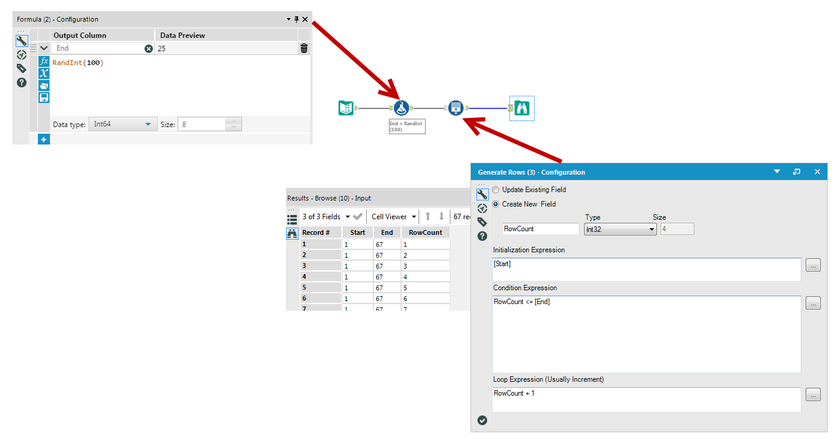
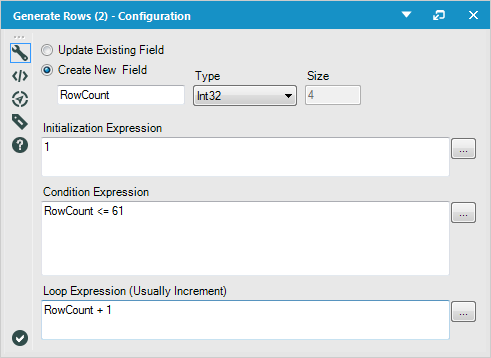
Another common use of the Generate Rows Tool is to duplicate the same row a certain number of times. In that case, you would use the Generate Rows Tool to add a "RowCount" to your data. The row count would start at 1 and increment by 1 until a limit is met:
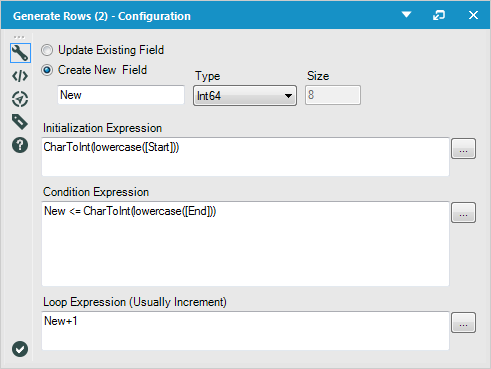
With help of the CharToInt() function, you can even use the Generate Rows Tool to increment letters.
Lets say you have the following start and end letters:
a - h
i - k
l - z
and you want to fill in the rest of the alphabet.
You can convert the letter to a number using the CharToInt() function and then increment that number by one until you reach the ending letter:
Also see the attached v10.5 workflow Generate Rows - Letter.yxmd.
By now, you should have expert-level proficiency with the Generate Rows Tool! If you can think of a use case we left out, feel free to use the comments section below! Consider yourself a Tool Master already? Let us know at community@alteryx.com if you’d like your creative tool uses to be featured in the Tool Mastery Series.
Stay tuned with our latest posts every Tool Tuesday by following Alteryx on Twitter! If you want to master all the Designer tools, consider subscribing for email notifications.