This article is part of the Tool Mastery Series, a compilation of Knowledge Base contributions to introduce diverse working examples for Designer Tools. Here we’ll delve into uses of the Rank Tool on our way to mastering the Alteryx Designer:
The Rank Tool, introduced in Alteryx Designer 2024.2, provides users with a simple and easy way to assign ranks to data based on customizable criteria. Designed as a new addition to the Preparation tool palette, it supports multiple ranking methods, making it adaptable to a wide variety of analytical needs.
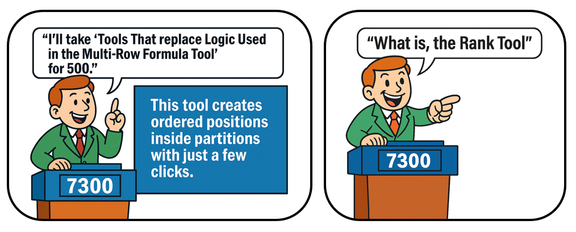
The Rank Tool integrates efficiently into modern Alteryx workflows, helping analysts quickly sort, compare, and prioritize records without requiring complex formulas. This tool offsets the need to perform ranking functions within the Multi-Row Formula Tool for standard ranking needs.
Using the Rank Tool
To use the Rank Tool, the AMP Engine must be enabled. The AMP engine lends itself to efficient processing, handling large datasets without significantly slowing performance.
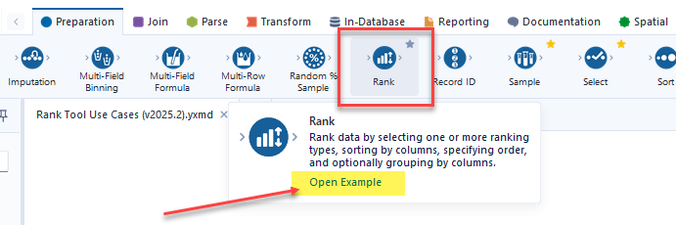
The tool itself can be found within the Preparation tool ribbon:

To bring the Rank Tool into your workflow, simply drag the tool and place it in line with your existing workflow on the canvas. Make sure its anchors are connected to the corresponding upstream and downstream tools in sequence.
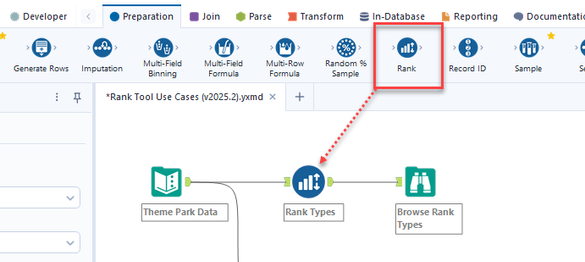
As with other tools, you can also right-click tools with an output anchor directly from the canvas. Navigate down to the “Insert After” sub-menu, then over to “Preparation” tools and select the Rank Tool. This will add and connect the Rank Tool following the originally selected tool.
How Does the Rank Tool Work?
The Rank Tool is simple, but mighty. It can be applied to datasets in their entirety or in groupings. To explore the tool, we will consider the following capabilities:
- Understanding the Rank Types
- Applying Column Order
- Ranking while Grouping by Columns
Prior to the introduction of the Rank Tool, ranking was accomplished by using the Record ID Tool for standard ordinal ranking, whereas the Multi-Row Formula Tool was used to accomplish more complex rank types and where grouping records was required. Keep in mind that conditional ranking may still require the use of formulas.
Within this Tool Mastery article, the dataset we will be using is fictitious data, simulating Theme Park Ride data. Focusing on ride Satisfaction Scores to help us illustrate and exemplify Ranking behaviors in Alteryx Designer.
1. Understanding the Rank Types
At its core, ranking is simply assigning a sequence of numbers, applied to data in a particular order. But what happens when you have ties or overlaps in the data?
The Rank Tool allows users to assign 5 different rank types to the data. Depending on the need, one or many of the ranking options can be enabled, all appearing in their own column, named according to the Rank Type.
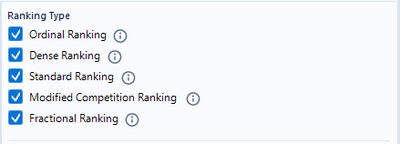
Let’s explore each rank type along with added data to assist in illustrating the respective ranking behavior.
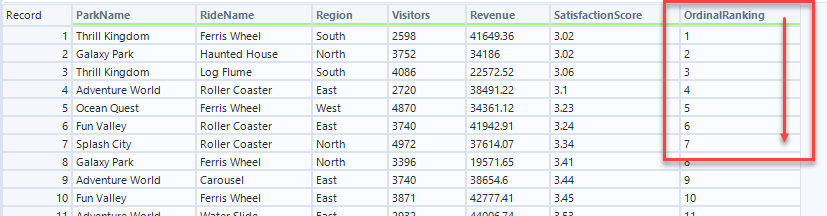
Ordinal Ranking:
- All items receive distinct ordinal numbers, even if some items are equal. This is considered the “default” rank type
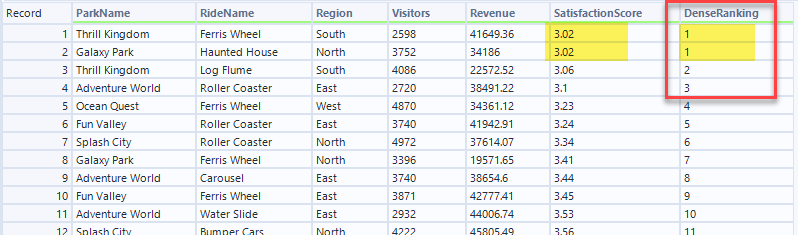
Dense Ranking:
- Equal items receive the same ranking number, and the next items receive the following number.
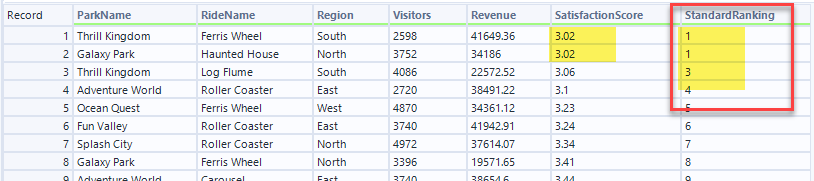
Standard Ranking:
- Each item is ranked by its position in the sorted list. Equal items share the lowest possible rank. Subsequent items are ranked as if the equal items occupied consecutive positions.
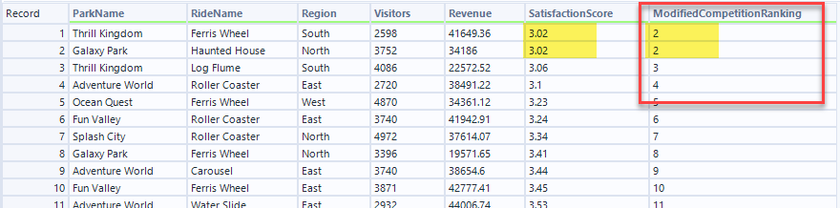
Modified Competition Ranking:
- Items are ranked by their position in the sorted list. Equal items share the same rank, corresponding to their position. The next item receives the following rank, regardless of the number of ties.
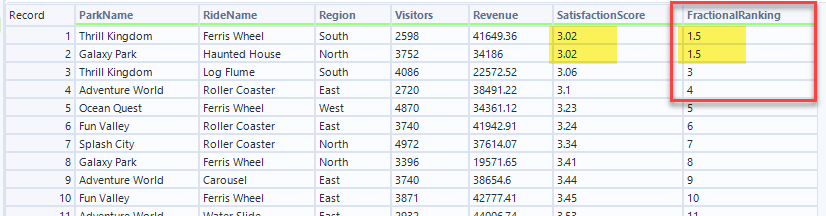
Fractional Ranking:
- Equal items receive the same ranking number, which is derived from their position in ordinal rankings. Specifically, it equals 1 plus the count of items ranked above them, plus half the count of equally ranked items. This method maintains the sum of ranking numbers consistent with ordinal ranking.
2. Applying Column Order
Column order matters in ranking because Alteryx processes ranking fields sequentially. Meaning, each field (or fields) influences how ties are resolved and how the final rank values are assigned.
Field order is specified in the configuration window as well as whether that field should be assessed in Ascending or Descending order.
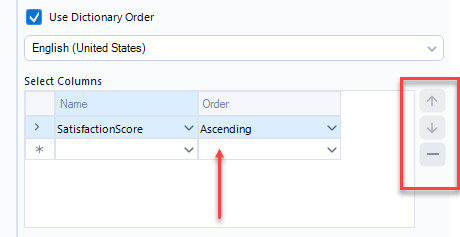
In the example above (which corresponds to the examples used with the Rank Type definitions above), we can see the field [SatisfactionScore] is being used to sort the data for the purpose of ranking. In this case, the field is being ordered in Ascending order.
If there were multiple fields being used to establish the order, the right-most buttons help arrange or remove fields in the "Select Columns" table of the Configuration Window.
Handline NULL or BLANK Values
When your dataset contains NULL or BLANK values, it is important to understand how those values will be treated by the Order since they are not ignored. Consider the following:
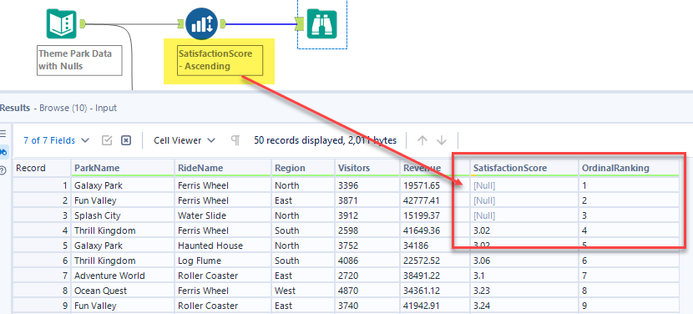
In this example there are NULL values that appear in the [SatisfactionScore] field. When the Order is Ascending, the NULL values will appear first, whereas in Descending order the NULL values will appear last.
Always check for NULL or BLANK values and resolve them (if necessary) before ranking your data.
Using Dictionary Order for Language Rules
An additional configuration consideration is the “Use Dictionary Order” option:
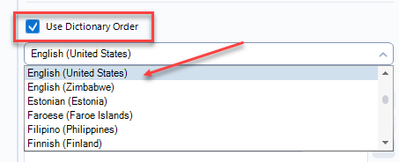
This optional feature allows the user to choose what language rules will be applied for the respective chosen language. The following are considered:
- Alphabetical sorting rules
- How accent characters are treated
- Locale-specific letter ordering
- Case sensitivity behavior
For fields that are numeric, the Dictionary Order does not affect the order. When the box is un-checked the tool relies on the default system sort behavior.
3. Ranking while Grouping by Columns
The last Configuration section for the Rank Tool allows users to specify is whether not any of the fields should be used to Group the data, thereby resetting the ranking. The ranking is performed separately within each unique group of rows based on the field selections.
In the following example, the OrdinalRanking and DenseRanking start over when the Region changes from “North” to “West” because the [Region] field is checked in the “Group by column” section of the Configuration window.
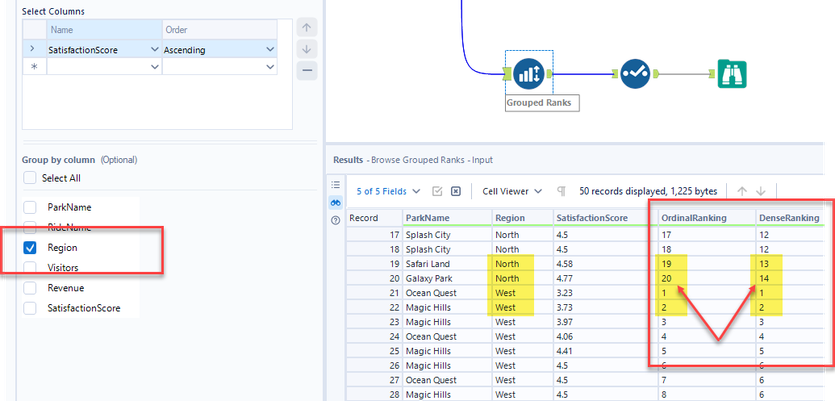
Note that the "Group by column" section is optional. There will be times when resetting the ranking within your data will be necessary and times when it will not. Your needs will dictate when this should be enabled and for which fields.

Congratulations, you've made it to the end of this Tool Mastery article and are now fully equipped to rank anything from theme park rides to your morning coffee choices. Use this power wisely... Go forth and rank with confidence!
For more information and example workflows, navigate to the Rank Tool in Alteryx Designer and select “Open Example”
By now, you should have expert-level proficiency with the Rank Tool! If you can think of a use case we left out, feel free to use the comments section below! Consider yourself a Tool Master already? Let us know at community@alteryx.com if you’d like your creative tool uses to be featured in the Tool Mastery Series.
Images & Attached Workflow Version: 2025.2


