This guide explains how to configure AWS Cognito to authenticate users for S3 buckets using OAuth2. You will need to set up a Cognito User Pool, an Identity Pool, and assign the necessary IAM roles and permissions for S3 access. Throughout the process, we will need to collect the following inputs required to create a connection between Alteryx and AWS S3:
- AWS Account id;
- Cognito domain URL;
- OAuth redirect URL;
- AWS Region;
- User Pool ID
- Identity Pool ID
- Client ID
- Client secret (optional for private applications)
Let’s start with finding your AWS account id. Click on your username in the top right corner of the screen as indicated on the below screenshot.
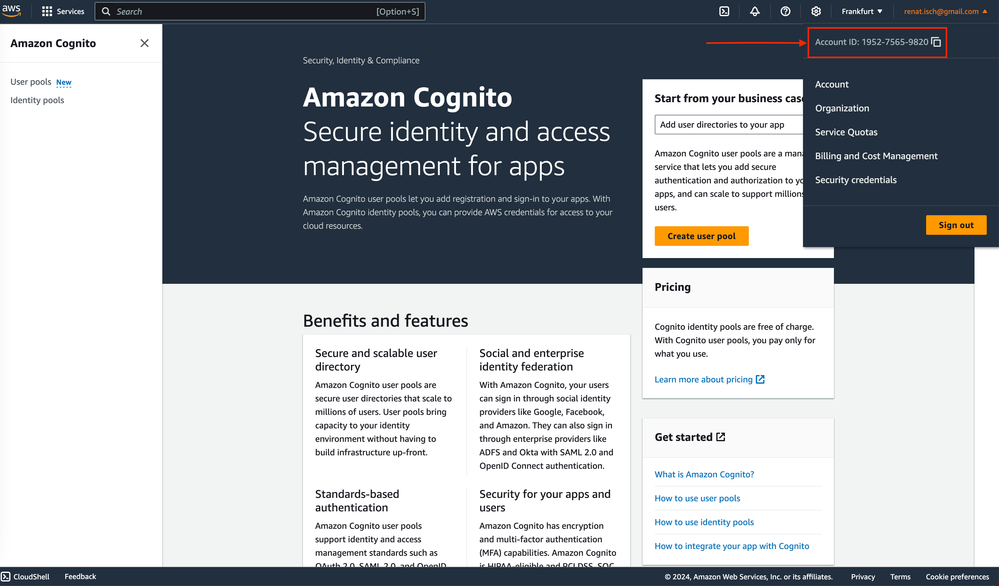
Follow the steps below to complete the configuration.
Step 1: Create a Cognito User Pool
A User Pool in AWS Cognito is where user identities are created and managed. Let’s walk through creating and setting up a User Pool with OAuth.
1. Create a new User Pool
Navigate to the AWS Cognito console and create a new User Pool.
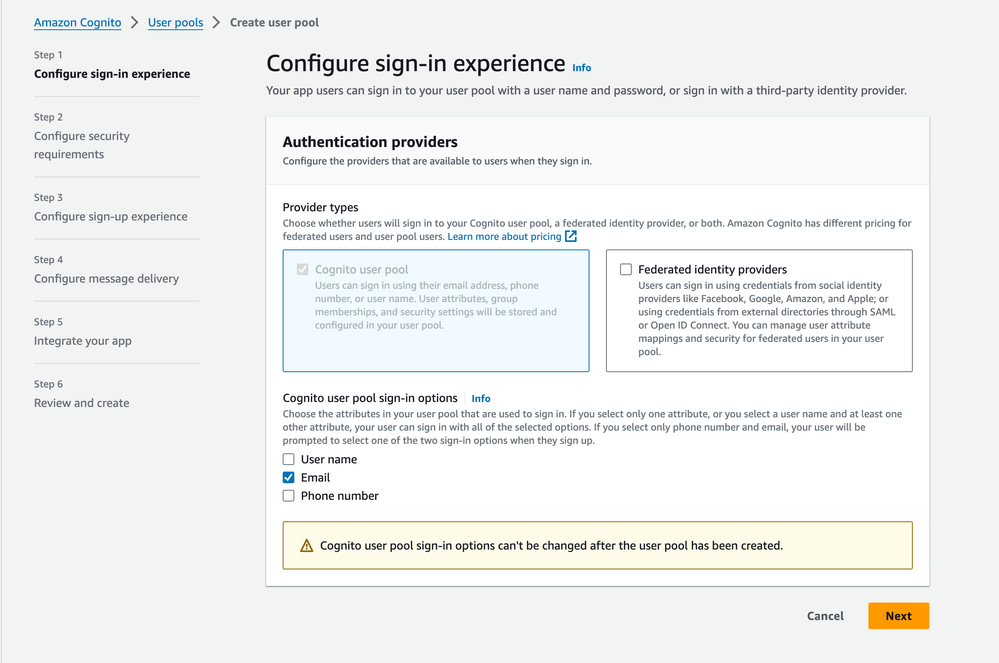
2. Configure desired security requirements;
3. Set up the initial OAuth application
After creating the pool, configure the app integration:
 4. Click Next, review and create the user pool;
5. Once the user pool is created, select the pool;
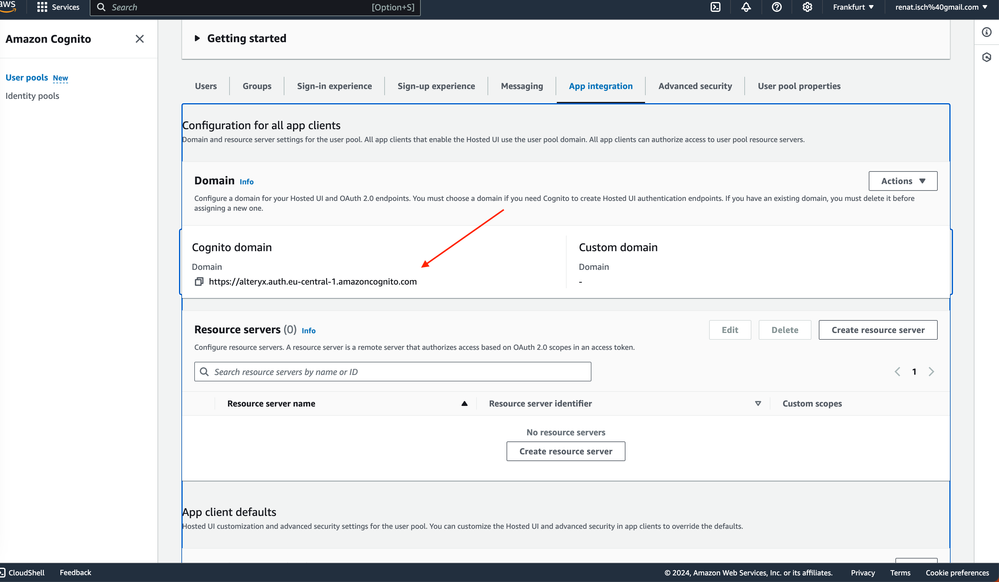
6. Locate and click the App integration category on your newly-created user pool
Locate User pool Id and extract the AWS region from it. For example if your user pool id starts with eu-central-1, then your region is eu-central-1.
Save your AWS Region value - you will use it later in this guide;
Scroll down to App clients and analytics section
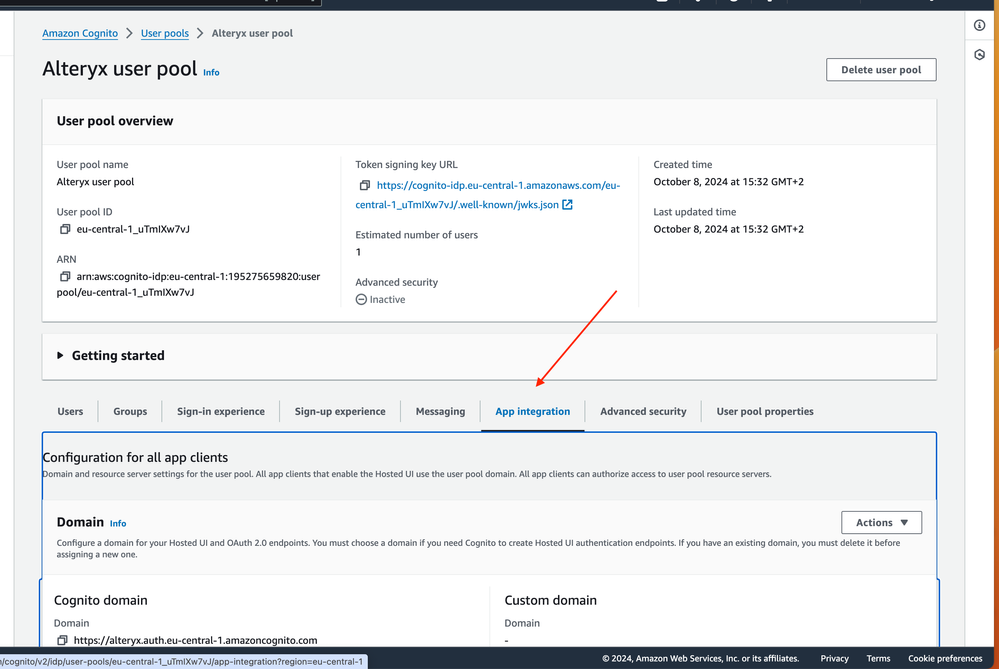
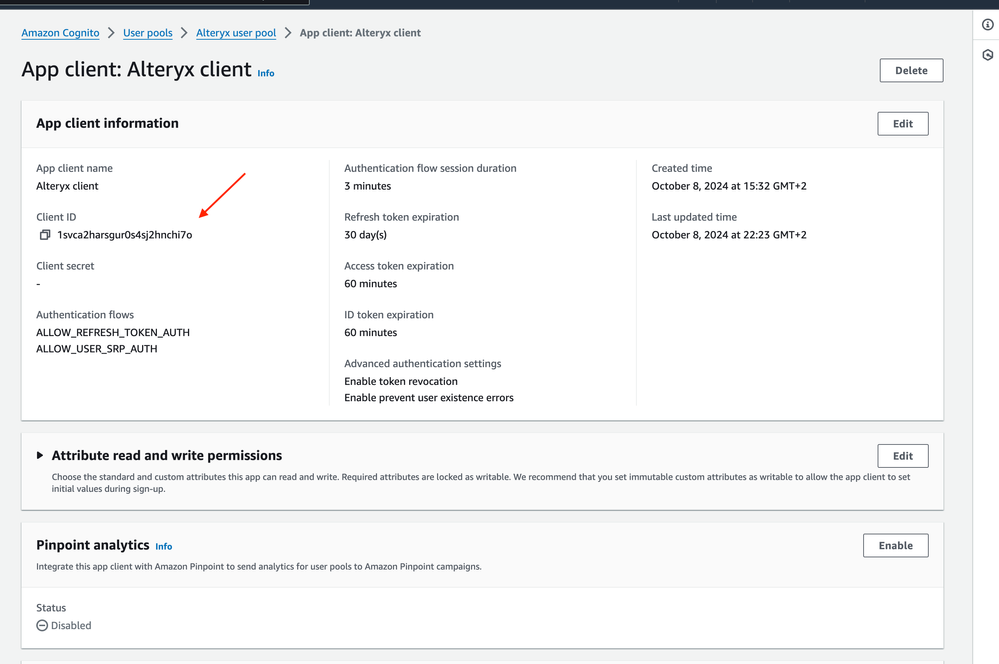
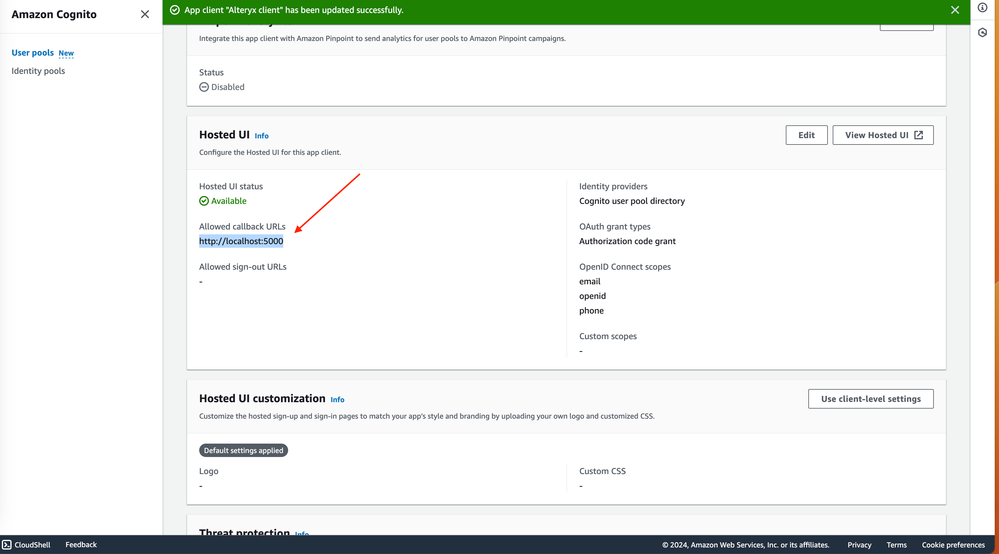
- This value is known as OAuth redirect URL;
7. Create user pool identity
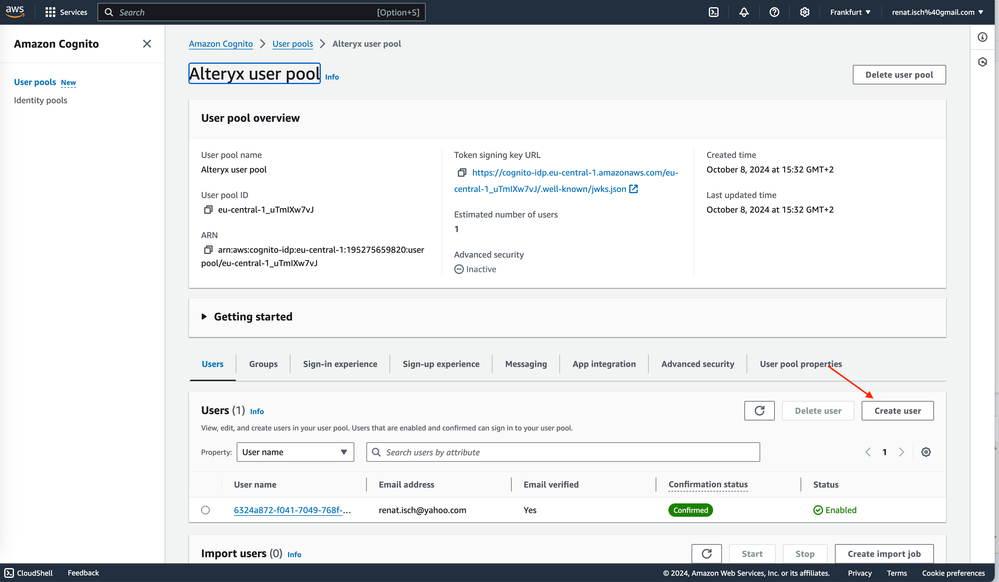
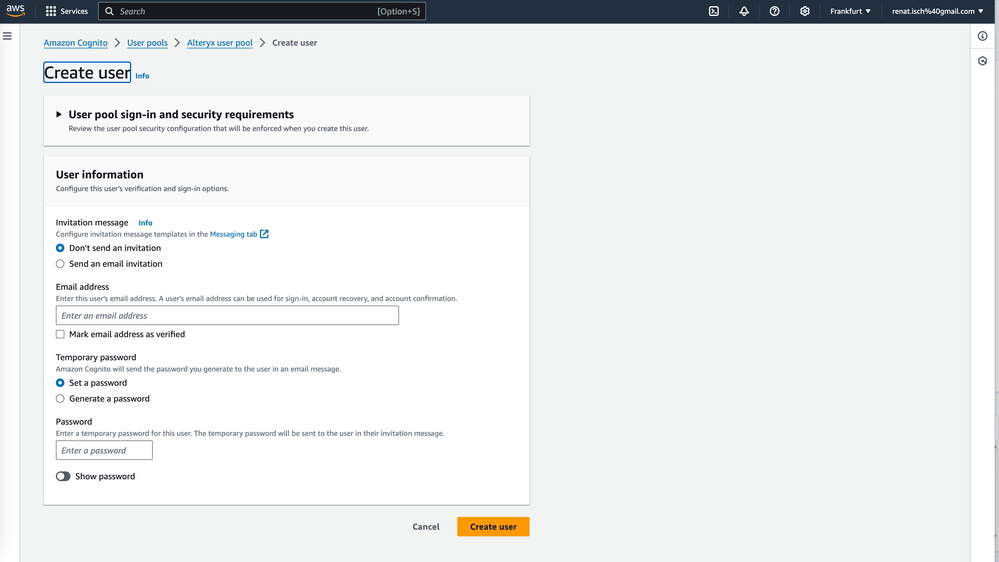
- Provide desired configuration and create a user
Step 2: Create an Identity PoolOnce the User Pool is created, we need to create an Identity Pool to link authenticated users with AWS resources such as S3.
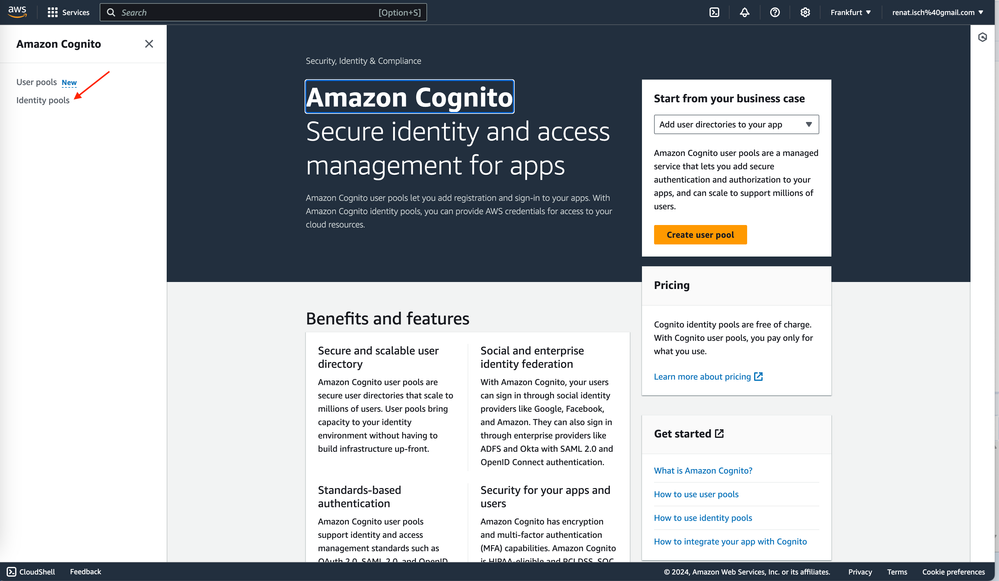
- Create a new Identity Pool and Enable authenticated user access
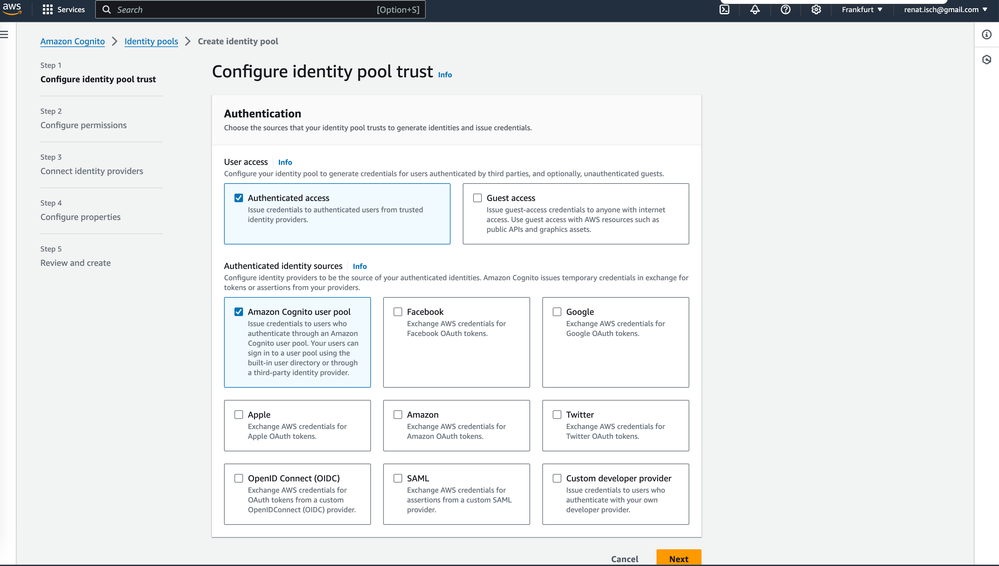
In the Identity Pool settings, configure authenticated access for users and select User Pool as source of the identity;
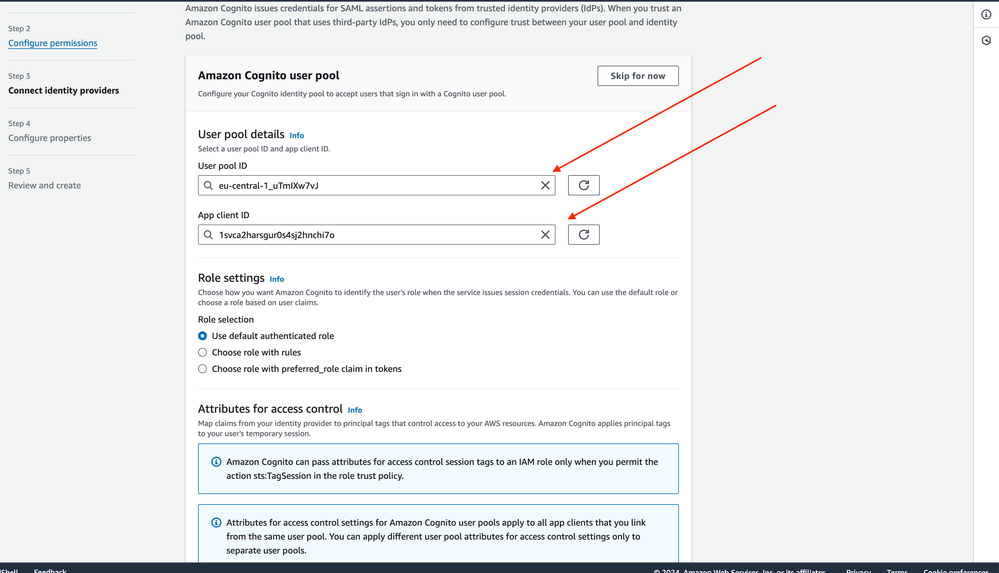
- Assign User Pool and OAuth client to the identity pool
- Choose the Cognito User Pool and OAuth client you created earlier;
- Collect the Identity Pool ID
After the setup, note down the Identity Pool ID, which will be used for integrating with other AWS services
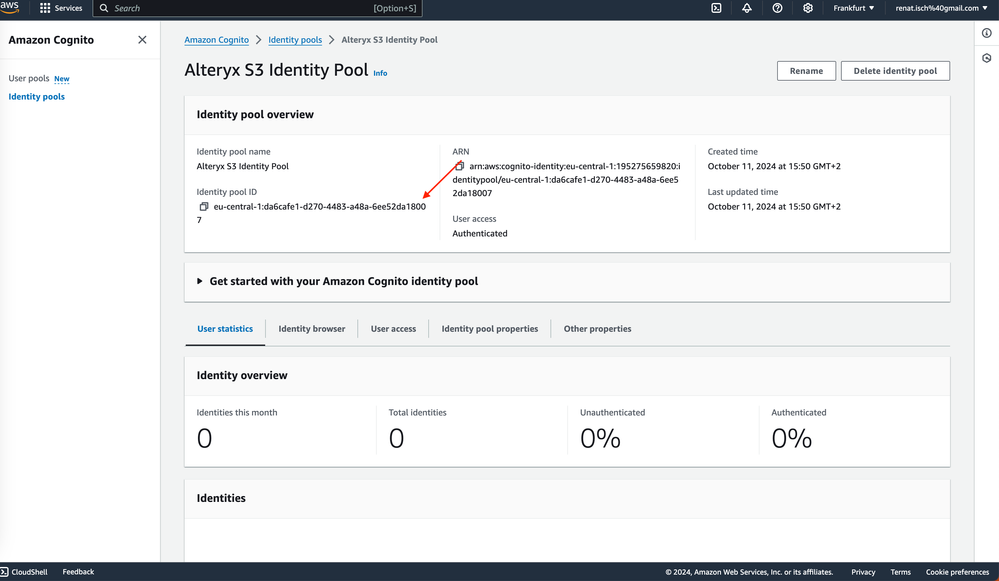
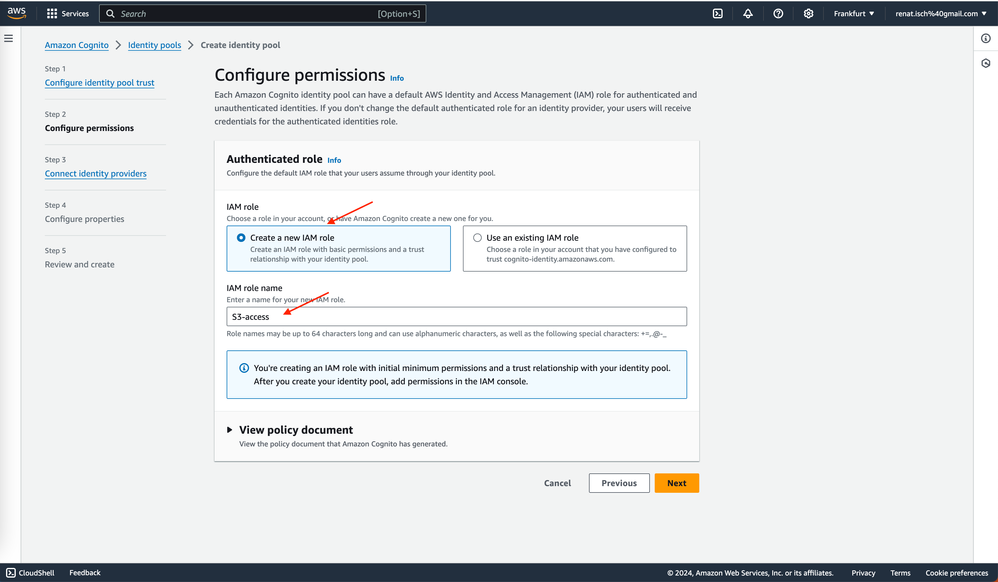
Step 3: Grant IAM Role Permissions for S3 AccessNow that your Identity Pool is configured, you need to assign the necessary IAM permissions to the role created in the previous step, allowing it to access S3.
1. Navigate to IAM and find your role
Go to the IAM console, click on Roles, and locate the role you created in the Identity Pool setup;
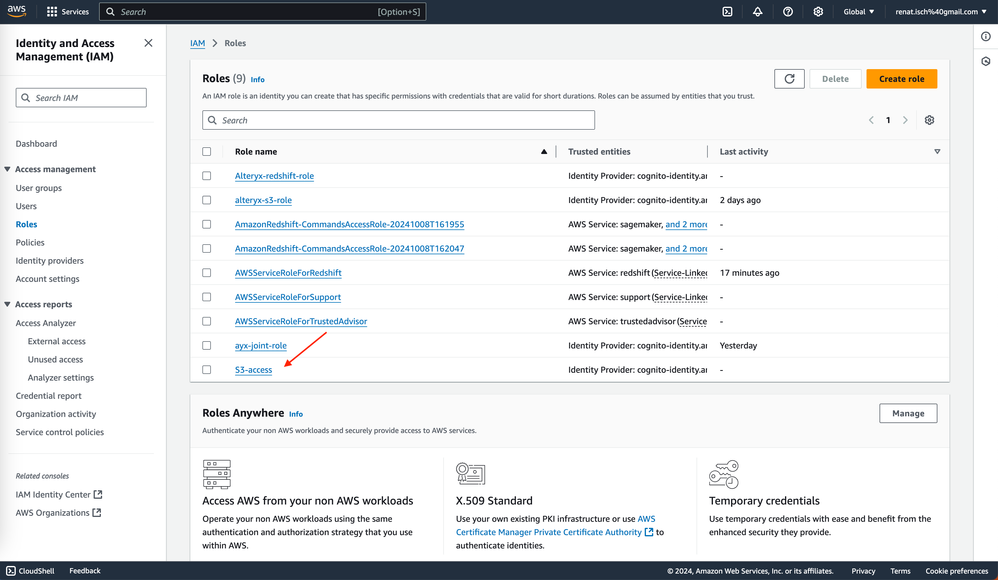
2. Attach S3 permissions
Select the role and go to the Permissions tab.
Click on Add permission, then choose Attach Policies.
Search for the AmazonS3FullAccess policy or any other necessary permissions
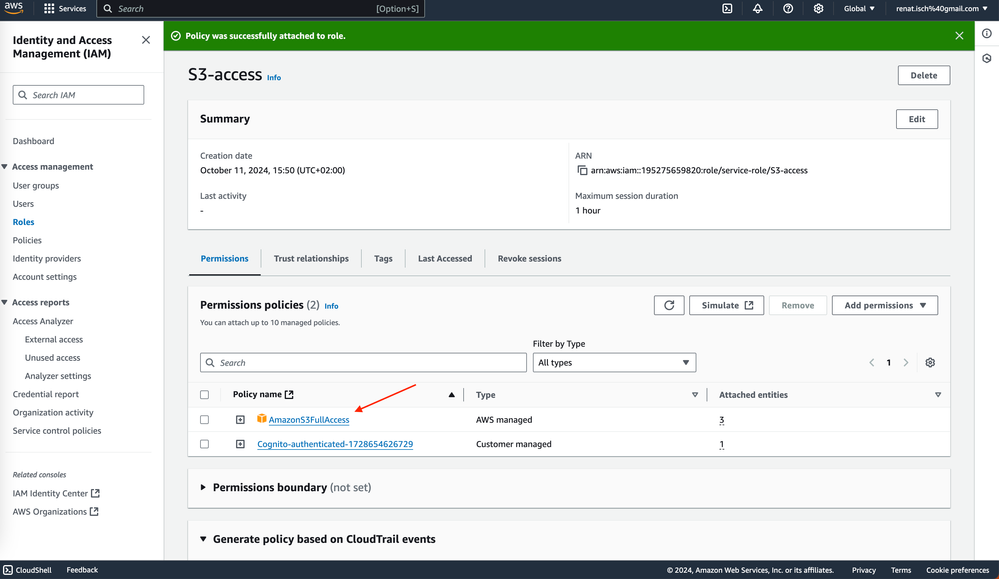
3. Apply the permissions
Once the correct permissions have been selected, attach them to the role.
Now, the role has permission to access your S3 account.
Step 4: Connect to S3 data from Alteryx DesignerOpen Alteryx Designer and search for desired S3 tool (download/upload)
Drop the tool on canvas and click Setup a Connection;
Provide your S3 bucket details
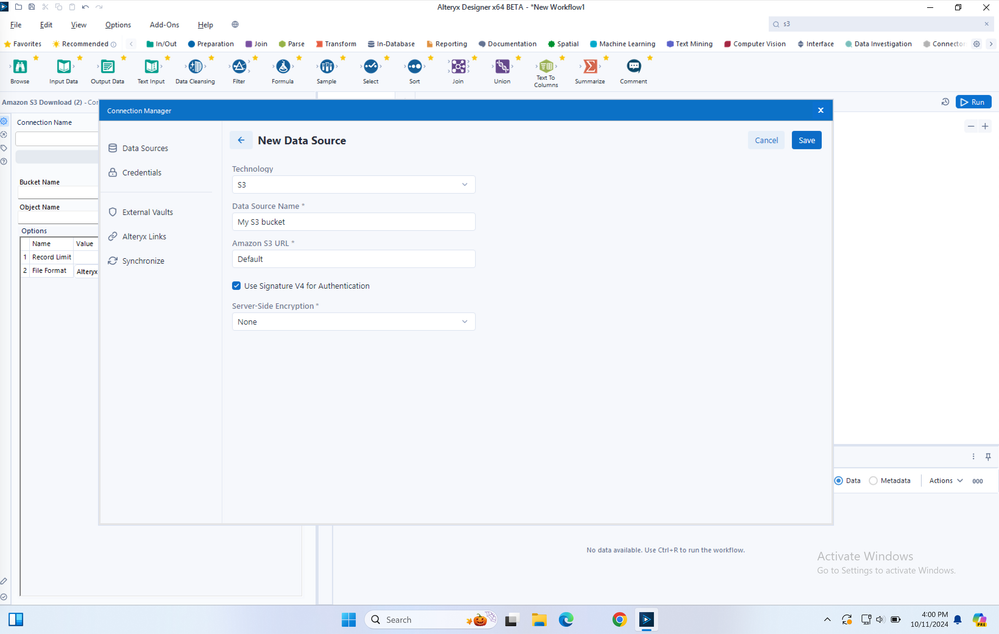
Click connect credentials;
Select AWS OAuth with Identity Pool for S3 as authentication method and create new credential;
Provide the required inputs we collected earlier
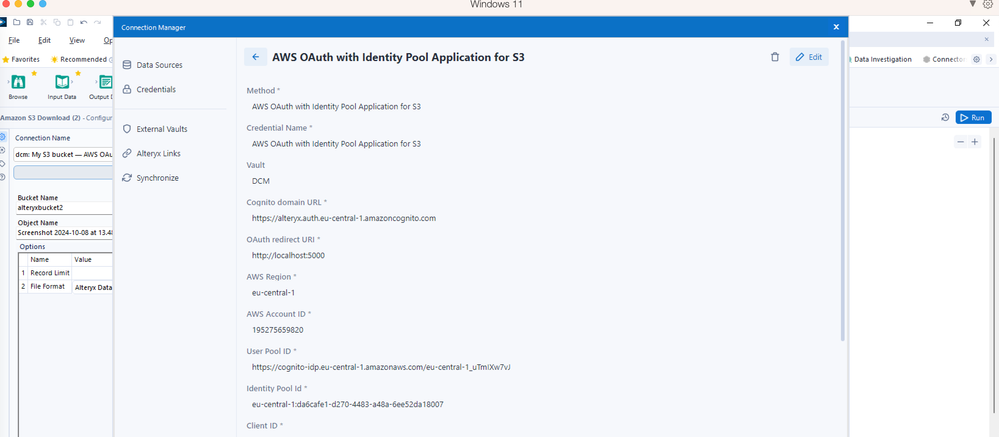
Under AWS temporary access credentials, create new credential and specify the name;
Click save and connect;
Finally, select the file you want to read
Final Thoughts
You’ve now configured AWS Cognito-based authentication for S3 by setting up a Cognito User Pool, creating an Identity Pool, and assigning appropriate IAM permissions to access S3. You can now use these configurations to authenticate users and control access to your S3 bucket.
For more advanced setups, consider configuring multi-factor authentication (MFA) or custom OAuth scopes within Cognito to enhance security.


