
This article is part of the Tool Mastery Series, a compilation of Knowledge Base contributions to introduce diverse working examples for Designer Tools. Here we’ll delve into uses of the Dynamic Replace Tool on our way to mastering the Alteryx Designer:
The Dynamic Replace Toolis an under-utilized tool in the Developer Toolset that is very powerful. It allows for dynamic formulas or conditions to be used in your workflow. It was first introduced in Alteryx 6.1. It’s one of the few tools that is currently multi-threaded which makes is fast.
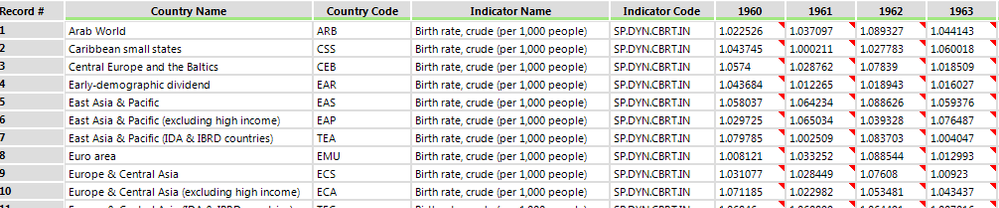
I’ll be using some birth rate datafrom the World Bank Group. I’ve included the relevant data in the attached Alteryx workflow. Here is a quick look at the original data in Alteryx:

Dynamic Formula (Output Value)
Let’s suppose that in addition to our birth rate data, we also have a trend value that is unique for every country/year combination:
Ultimately, we want to simply multiply our birth rate data by the trend value for that country/year. We’ll use the Dynamic Replace tool to do that.
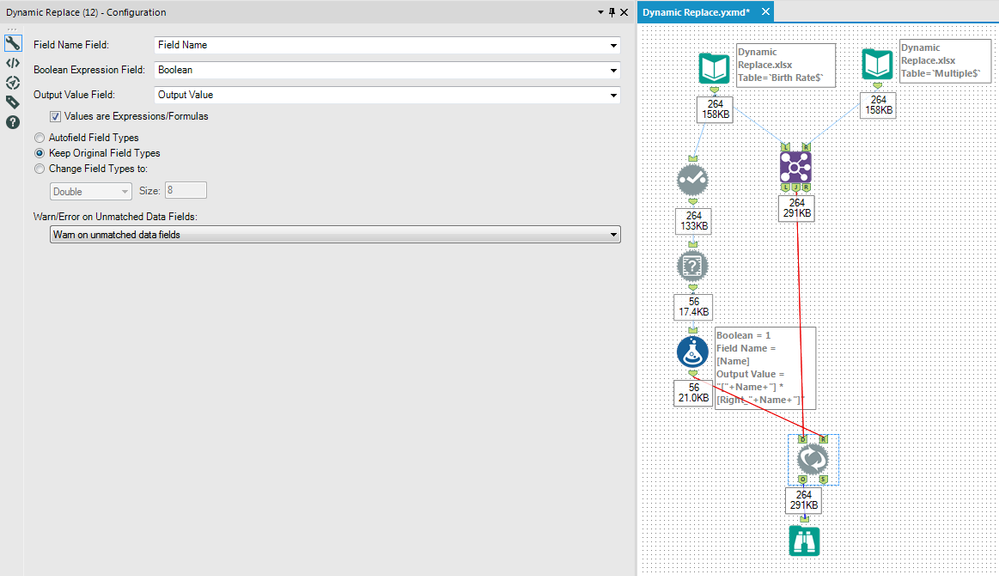
In order to prepare the data for the Dynamic Replace Tool, We’ll start with our birth rate data. We’ll use a Dynamic Selectand a Field Info Toolin order to grab a list of all our fields that we want to use the dynamic formula on. We use a Formula Toolto setup our fields for the DynamicReplaceTool:
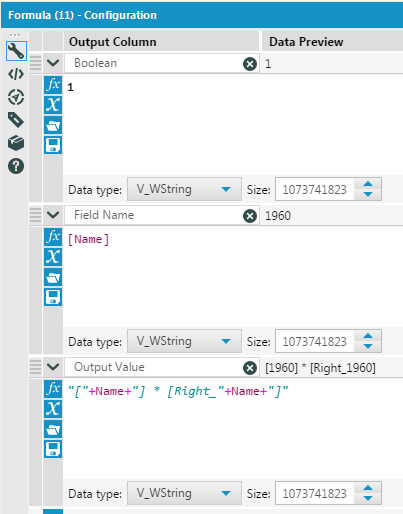
The Boolean value is a condition where any value other than 0 will replace the named field with the output value. The Field Name specifies which field you want to replace data. The Output Value is the value that you want to put into the named field. In this case, I’ve built our formula to multiply the year by its trend.
Separately, we combine our birth rate and trend data using a Join Tool. Since our field names are the same, the join tool automatically adds a prefix of “Right_” to the trend data, which we’ve accounted for in our formula above.
For our Dynamic Replace pictured above, we selected our fields appropriately. We checked the box that our Output Value field was an expression. This is what makes the Dynamic Replace so powerful - no other tool can evaluate a formula like the Dynamic Replace. We’ve selected the radio button for “Keep original field types” since our data will remain a number. The last option about unmatched fields is moot since our Boolean will always result in True.
With these settings, our Dynamic Replace is all set. While the Dynamic Replace is multi-threaded and optimized, here’s one way to conceptualize what it’s doing at run time:
- It will start with the first record in the R input.
- It will then check the Boolean expression from the R input against the first record in D input (which can reference any fields from the D input)
- If the Boolean expression evaluates to 0 for a particular record, it essentially makes a note to changes the data in that Field Name to Null in the last step, unless another record from the R input evaluates to non zero for that Field Name.
- If the Boolean expression does not evaluate to 0 for a particular record, it puts Output Value in the Field Name. If Output Value is a formula, it evaluates the formula. It moves on the next record in D output and starts over again at the second bullet point. This record cannot be changed again.
- Once all the D records have been processed, it moves on the next record in the R input and goes back to step 1.
- After everything has been processed, there is a key final step that takes place. For all the records that have been “marked” in item 1 of the second bullet point, it converts these values to Null.
Dynamic Condition (Boolean)
Let’s suppose in this example that we want to bucket our birth rate data. Instead of hardcoding that data into the formula tool, we’re required for business reason to bring this data in from another source (an excel file in this case). This is a case where can use the Dynamic Replace to properly accomplish the task:
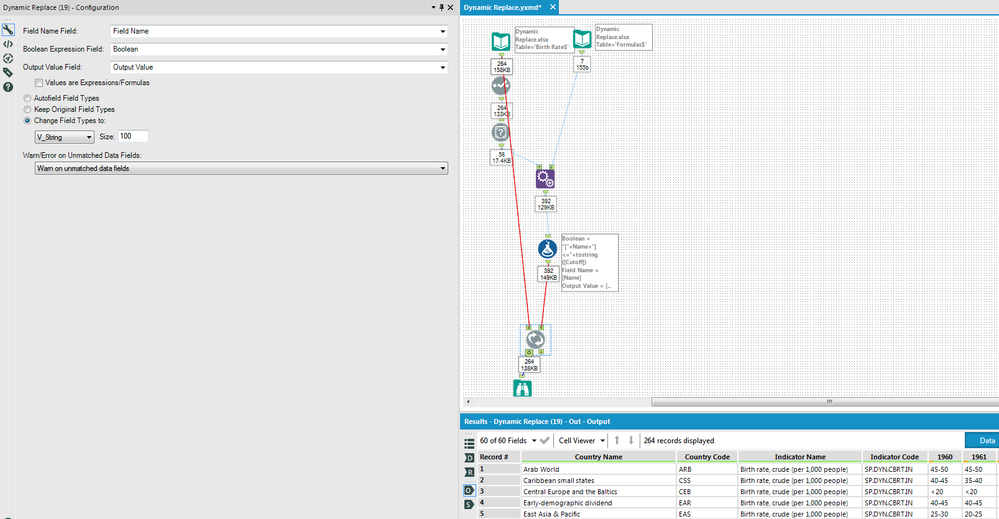
We start with our birth rate data again and then appendthe list of years to our buckets:
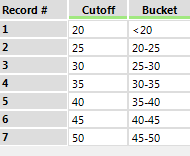
We then use a formula tool to create our 3 fields again:
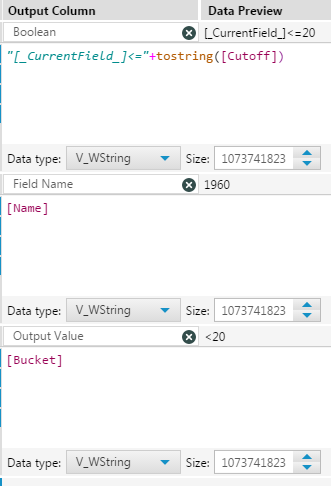
This is very different from our first use case. We’re using the Boolean field as a Dynamic Condition to check whether the field is less than our cutoff. We can use the _CurrentField_ syntax. The Field Name still references our Name Field. Our Output Value is now just the Bucket field.
Our Dynamic Replace is setup a little different for this case. We’ve unchecked the Values are expressions box since our Output Value isn’t a formula this time. We’ve also selected the radio button that our field type is changing to a string. This time the warning on unmatched field does play a role. We see from our messages that there are some null values that are not matching any of our criteria:
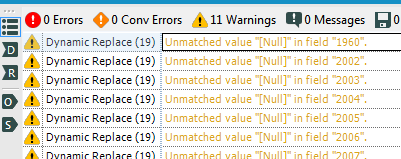
Let’s check out the S output on our Dynamic Replace as that will give use more info as well:
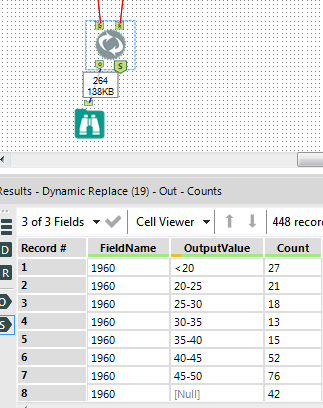
This means for 1960 there were 42 Output Values that were null. A quick check of the original data shows 25 Input values were null. The other 17 nulls are being created because they have values >=50. Since these records never met any of our Boolean conditions, they are changed to nulls. One way to solve this problem would be to add another bucket to catch these records >=50; however, a more interesting and instructive approach would be to create a Dynamic Replace Iterative Macro.
Dynamic Condition Formula Iterative Macro
To handle the issue of nulls for records that don’t match a condition, let’s look at creating an iterative macro. We’ll walk through the workflow and then the macro. Here is our workflow:
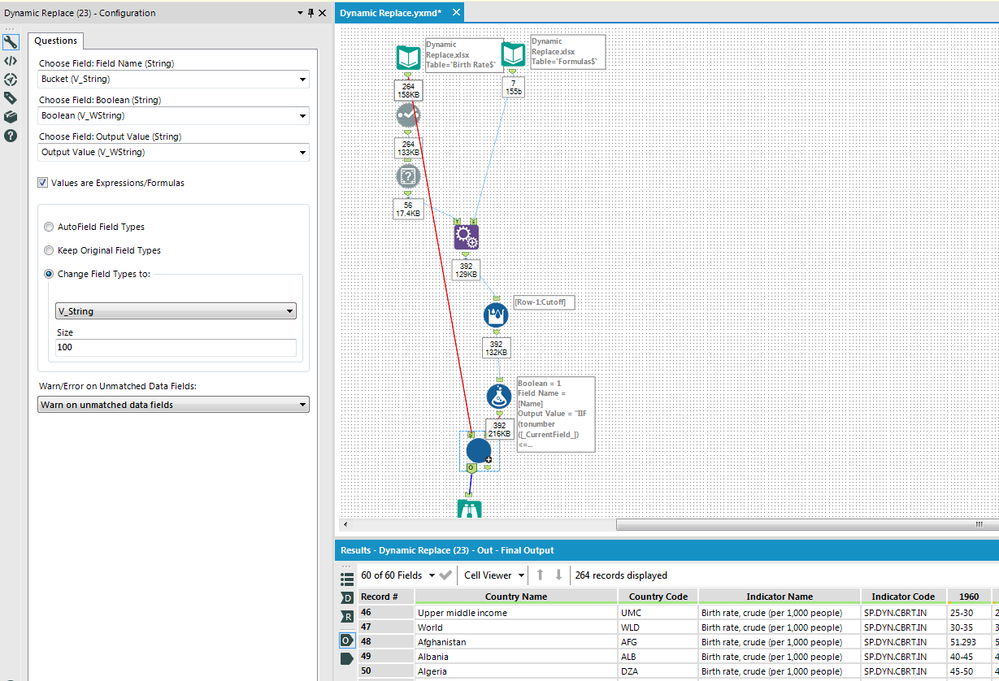
After the append, we’ve inserted a Multi-Row Formula Tool so that we can bound our cutoff from below. This wasn’t necessary in our last case because the Dynamic Replace will only replace a number once. Since we’ll be running multiple Dynamic Replaces, we now need to have an upper and lower bound to prevent replacing an item more than once. Here’s our formula tool now:
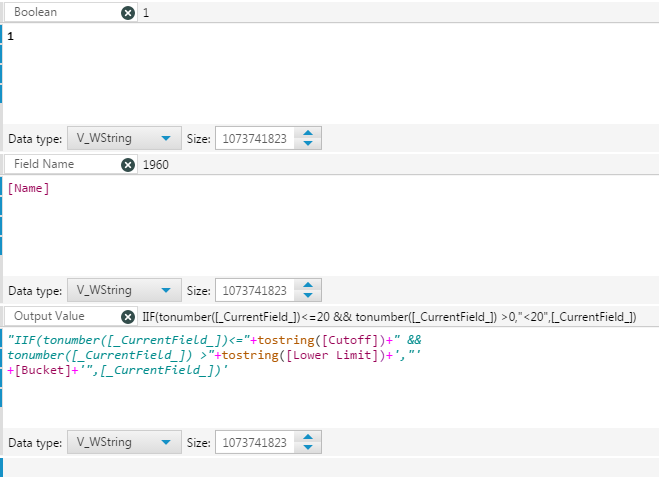
Our Boolean and Field Name are the same as our first case. The Output Value has become a little more complicated as we have to now convert our field to a number, apply an upper and lower bound, and replace it with its existing value if it doesn’t match.
Here is our Macro:
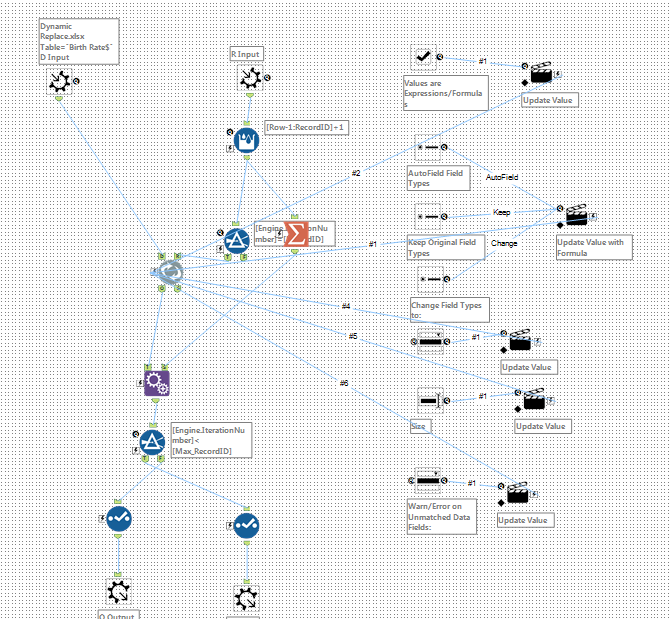
I won’t delve in too deep, but essentially our Macro runs through each Output Value 1 set at a time. It keeps running until all the records have been passed through. Here is how it’s setup in our workflow:
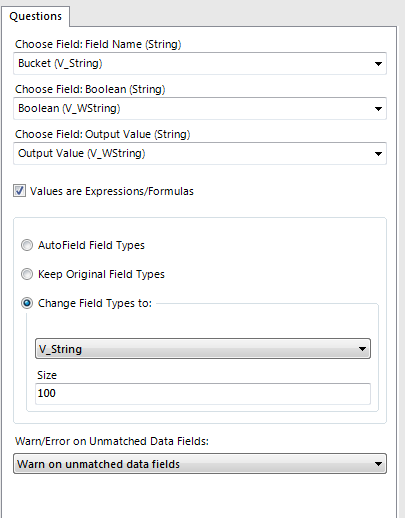
We’ve basically copied the Dynamic Replace tool's configuration and then put in into an iterative macro so that it can be run over and over for each condition separately.
You’ll see in our output that our buckets are the same but for those records that don’t fit into a bucket, the value remains:

With our 3 cases above, hopefully you’ve learned how to use the Dynamic Replace to create Dynamic Formulas, Dynamic Conditions, or both! This tool packs a powerful punch.
By now, you should have expert-level proficiency with the Dynamic Replace Tool! If you can think of a use case we left out, feel free to use the comments section below! Consider yourself a Tool Master already? Let us know at community@alteryx.com if you’d like your creative tool uses to be featured in the Tool Mastery Series.
Stay tuned with our latest posts every#ToolTuesdayby following@alteryxon Twitter! If you want to master all the Designer tools, considersubscribingfor email notifications.


