High-Level Issue
Not sure if anyone else has ran into a similar issue with the latest version (2023.2) of Alteryx. I recently upgraded my Alteryx Designer software from version 2021.4.2.47884 (Patch 11) to Designer 2023.2 and was unable to directly connect to my Postgres 15 database. I receive the following error in the results terminal: Error: Input Data (3): Error SQLDriverConnect: SSL SYSCALL error: No error (0x00000000/0)
Critical Version Info
- Alteryx Version: 2023.2
- Database: PostgreSQL 15 Database
- Database Driver: PostgreSQL ANSI(x64) Version 16.00.00.00
Reproduction Steps
Requirements:
- Postgres 15 database
- Alteryx Designer 2023.2
Steps:
- Open Alteryx Designer 2023.2
- Drag 'Input Data' onto workflow
- Uncheck 'Use Data Connection Manager (DCM)'
- Click 'Set Up a Connection'
- Add Data Source -> PostgreSQL ODBC connection
- Select Postgres15 Data Source and provide valid credentials (User name and Password)
- Click OK
- Assert that the Visual Query Builder is showing schema and valid tables of database ✅
- Select table and click 'OK'
- Run Workflow
- Assert the following error is shown `Error: Input Data (2): Error SQLDriverConnect: SSL SYSCALL error: No error (0x00000000/0)`
Drivers Tested
| Name | Version | Date | Successful Connection to Alteryx? |
| PostgreSQL ANSI | 16.00.00.00 | 9/16/2023 | False |
| PostgreSQL ANSI(x64) | 16.00.00.00 | 9/16/2023 | False |
| PostgreSQL Unicode | 16.00.00.00 | 9/16/2023 | False |
| PostgreSQL Unicode(x64) | 16.00.00.00 | 9/16/2023 | False |
Note: I was able to make a successful test connection with each of the drivers listed above. The problem occurs when attempting to establish the connection within Alteryx Designer.
Debugging
The TLS connections to the database can be observed using Network Monitor by Windows: https://www.microsoft.com/en-us/download/details.aspx?id=4865
Steps:
- Open Alteryx and load the saved workflow
- Open the Network Monitor tool
- Select "New Capture"
- Press "Start"
- - note: all network traffic will be displayed in Network Monitor tool
- Navigate back to Alteryx
- Select the Input Data action
- Pres the "Refresh" button in the properties pane
- - data from the database will be populated
- Press "Run" to run the workflow
- - an error will show in the Results pane if running an impacted version of Alteryx, otherwise the results will be displayed
- Navigate back to the Network Monitor tool
- Press "Stop" to stop the Capture"
- Input the following Display Filter: tcp.port == 6432 and TLS.TlsRecLayer.TlsRecordLayer.SSLHandshake.HandShake.HandShakeType == 0x1
- - this filter will only include ssl handshakes with the database over port 6432
- click "Apply" to filter the results
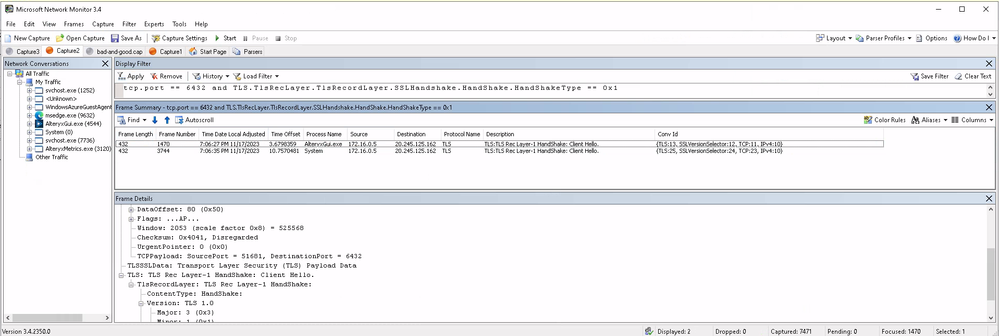
When using the 2022.1.1 version (or 2021.4.2) of Alteryx I would see two idential TLS client handshakes:
Picture 1
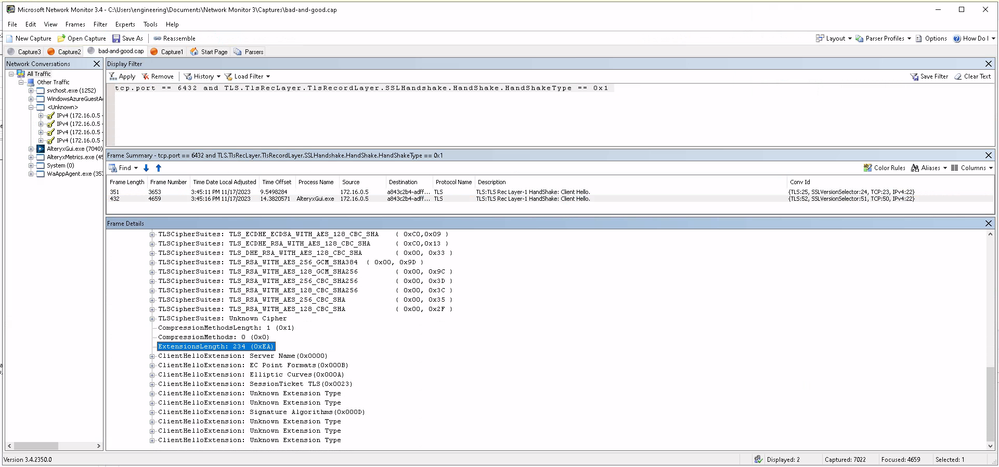
When using impacted versions of Alteryx (2023.2.1, 2023.1.1, and 2022.3.1) the TLS client handshake when loading the preview was correct:
Picture 2
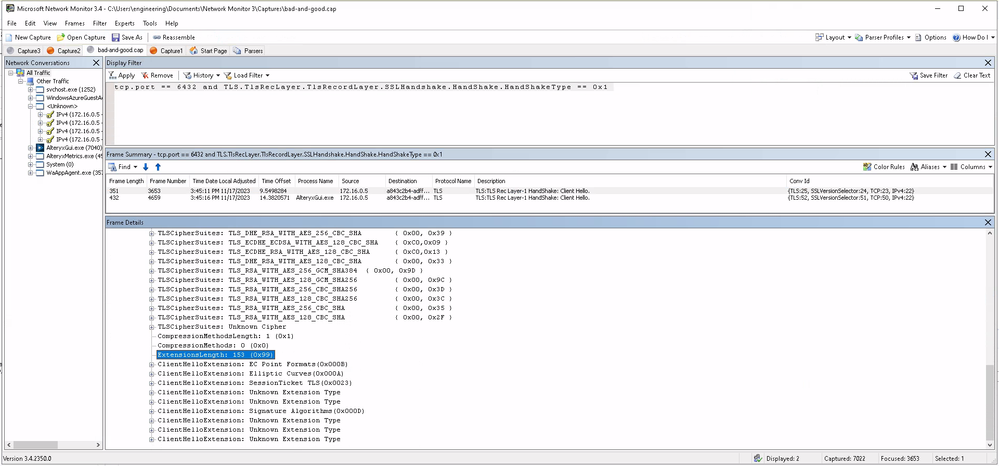
but the TLS client handshake when running the workbook was missing key data:
Picture 3
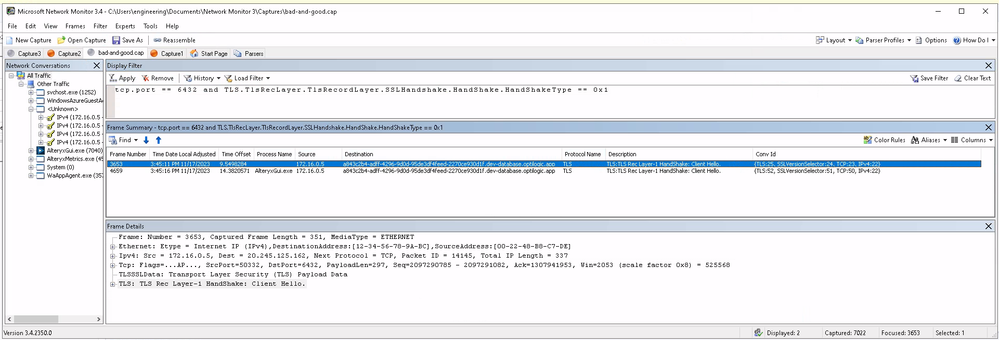
The TLS client handshake when running the workbook is missing the following client extension:
Picture 4
The TLS client handshake when running the workbook is missing the following client extension:
ClientHelloExtension: Server Name(0x0000)
ExtensionType: Server Name(0x0000)
ExtensionLength: 81 (0x51)
NameListLength: 79 (0x4F)
NameType: Host Name (0)
NameLength: 76 (0x4C)
ServerName: a843c2b4-adff-4296-9d0d-95de3df4feed-2270ce930d1f.dev-database.optilogic.app
which is preventing Alteryx from connecting to the database.
Database Connection Information
Empty database with sample data
"host":"0afd2b7e-17b6-457d-a50e-8aed994640ed-c1169ec5f2fd.database.optilogic.app","port":6432,"dbname":"0afd2b7e-17b6-457d-a50e-8aed994640ed-c1169ec5f2fd","user":"0afd2b7e-17b6-457d-a50e-8aed994640ed_475a19e2fd95","password":"$h7X~cmXek8ds`^w","sslmode":"require"
Important Note:If I click on the input data node and then click 'Refresh' in the left hand column to set up the connection, in the bottom left 'preview' window I can see that it is successfully outputting the data of the table that I specified, however, when running the workflow the connection cannot be established.


